


- Home
- Sendaro Warehouse
- Reorder suggestions

See what’s running low and how much to order.
For online shops in Bulgaria.
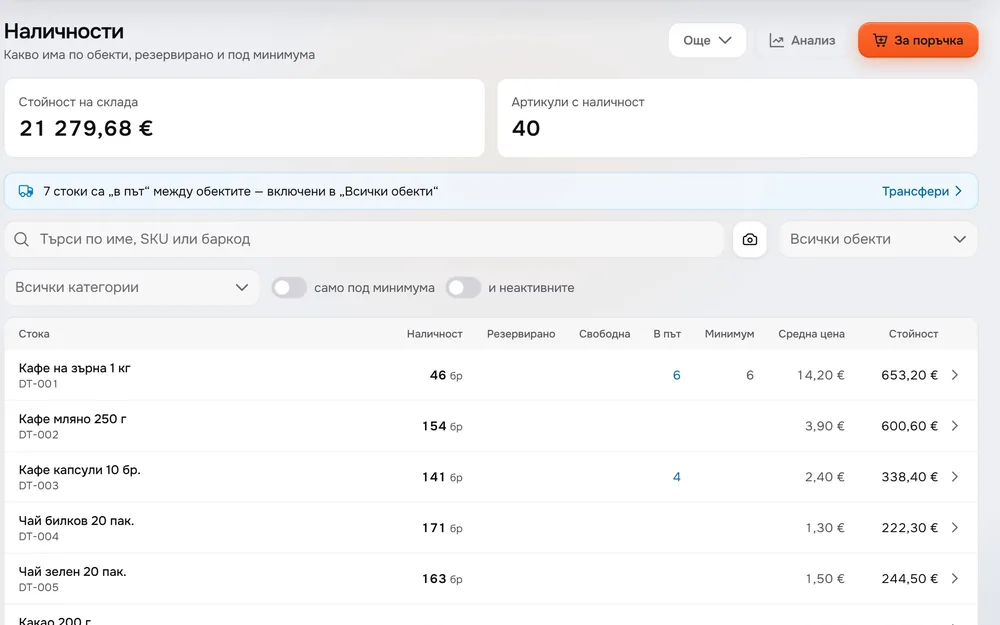
Sendaro Warehouse groups items below their minimum by supplier and works out how much to order – rounded up to a full case if the item is ordered by the case. ‘Why?’ shows the calculation for every item. If another location has surplus, take it from there with a transfer.
14 days free · No card · No contract
How it works
See where each suggestion comes from.
Real Sendaro Warehouse screens, with a demo company and made-up data.
- 01
Open the list for a location
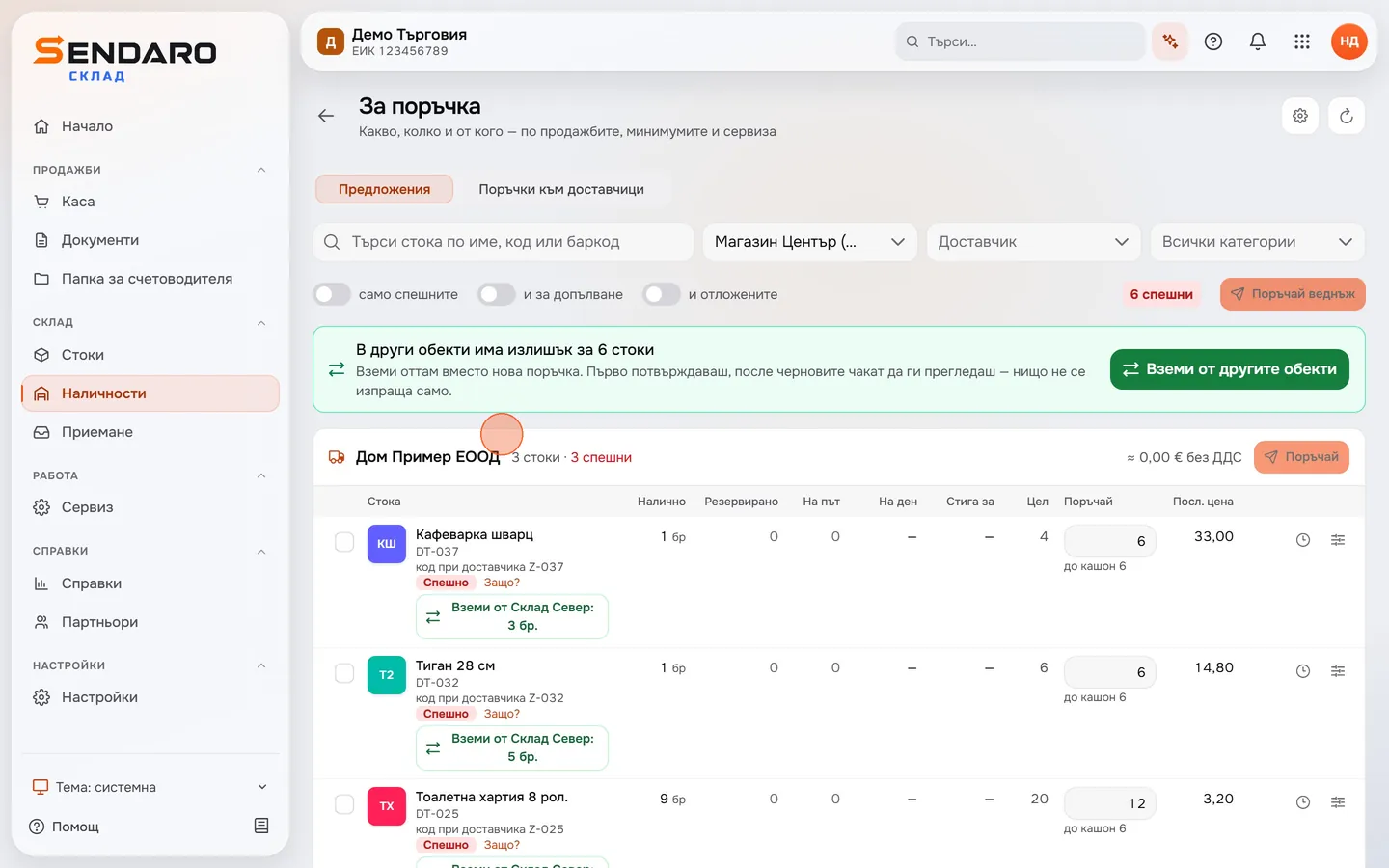
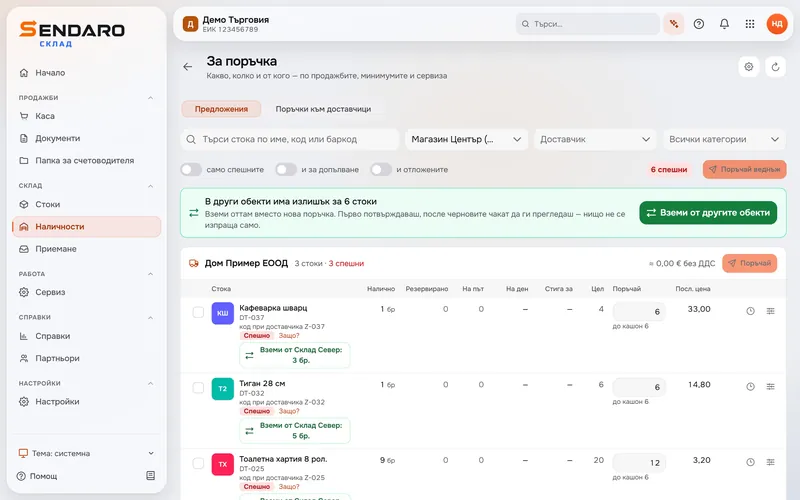
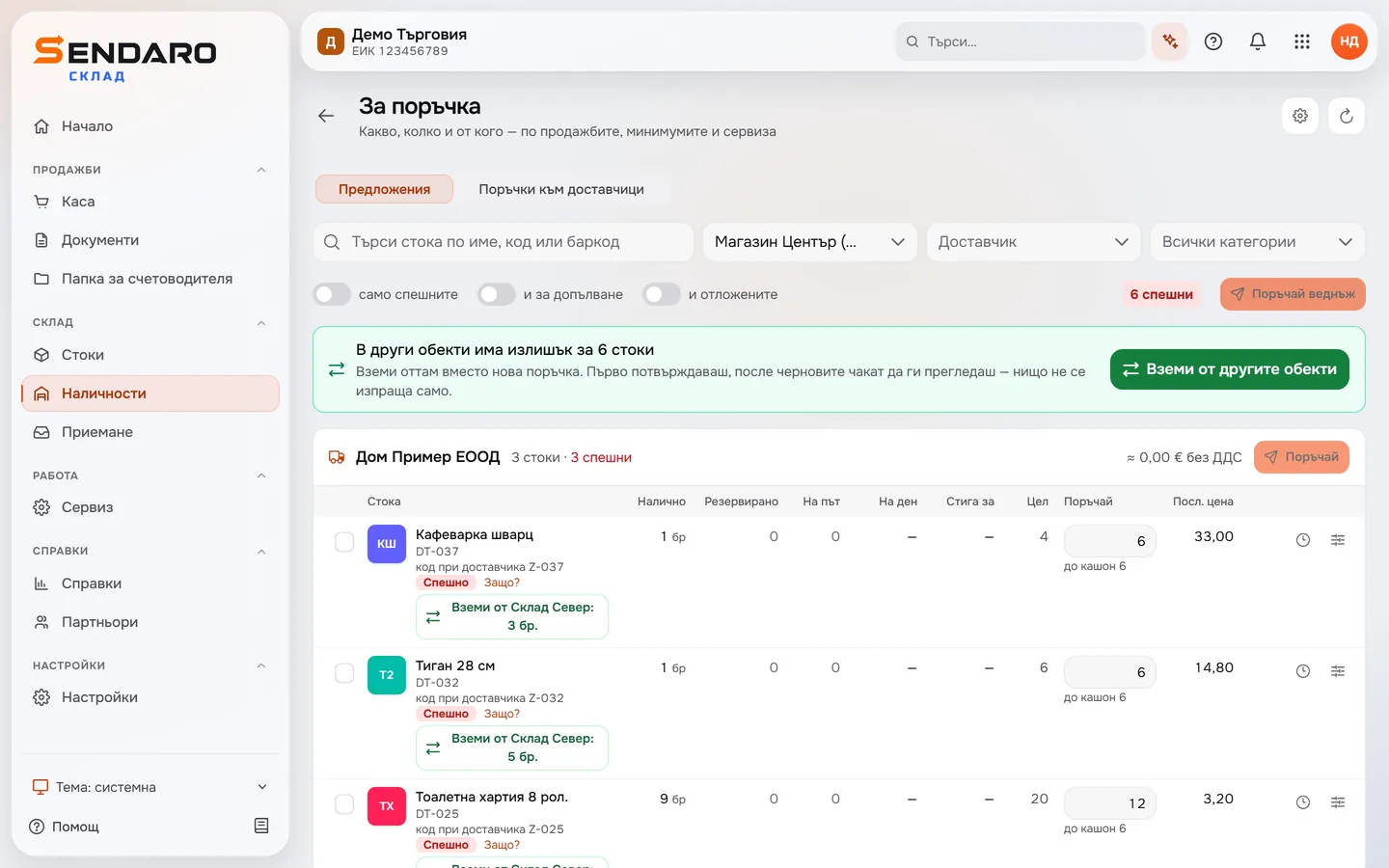
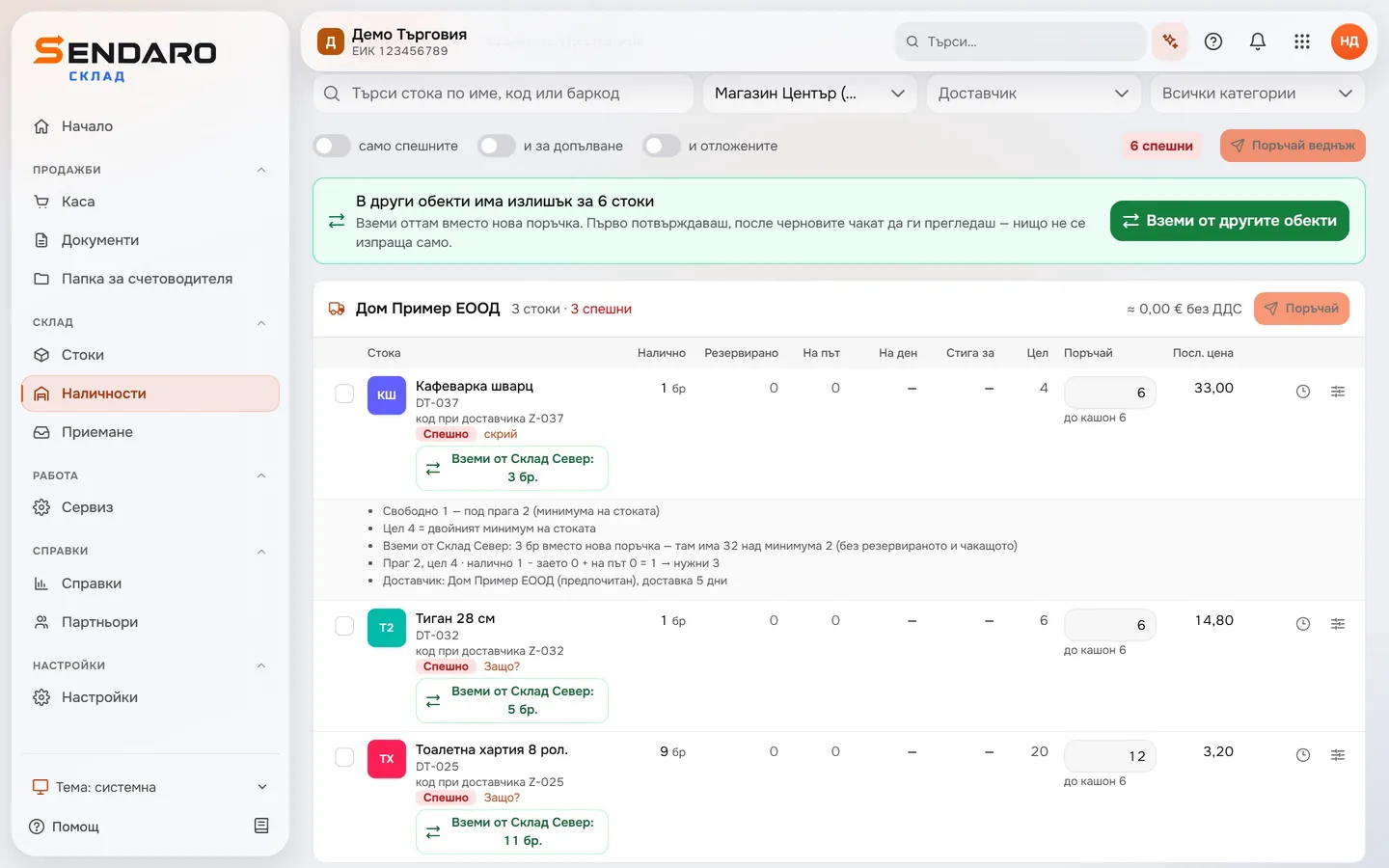
Choose a location to see the items below their minimum, grouped by supplier. Filter by supplier and category, or show only the urgent ones.
- 02
See how much to order
For every item you see how many you have, how many are reserved, how many are on the way and what the target is. The ‘Order’ column shows how much to order, rounded up to a full case if the item is ordered by the case.
- 03
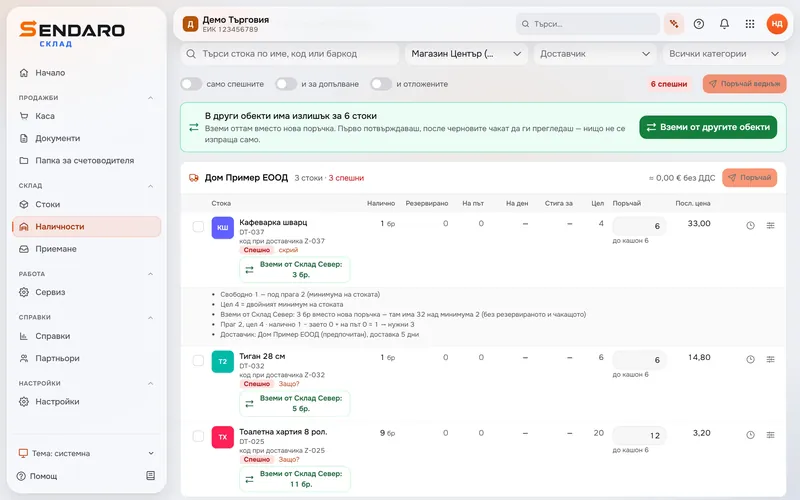
‘Why?’ shows the calculation
Click ‘Why?’ and the calculation opens under the item: free stock against the minimum, the target, what’s on the way, the preferred supplier and how many days delivery takes.
- 04
Take it from another location instead of ordering
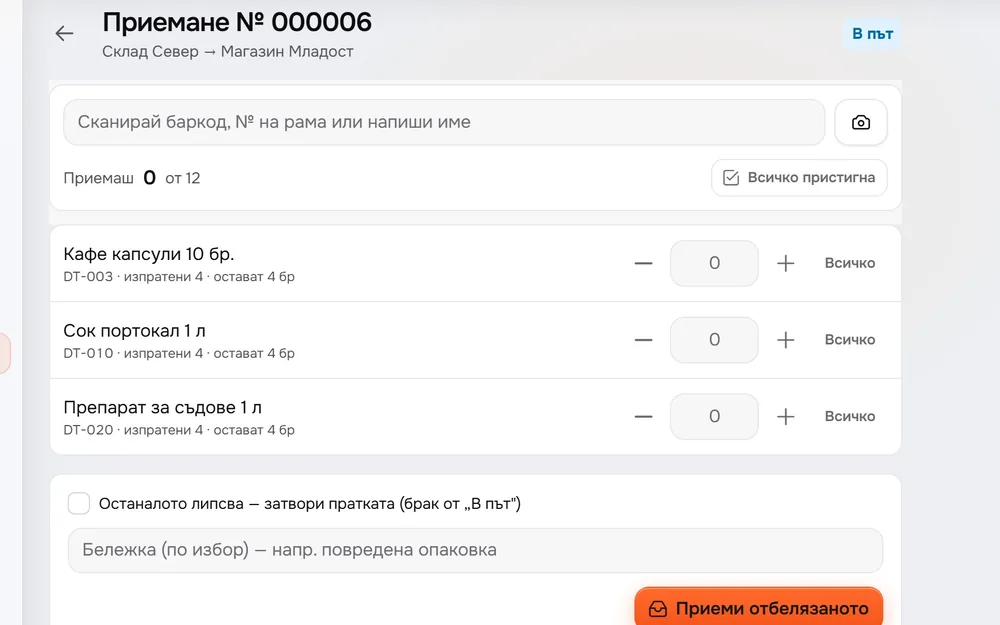
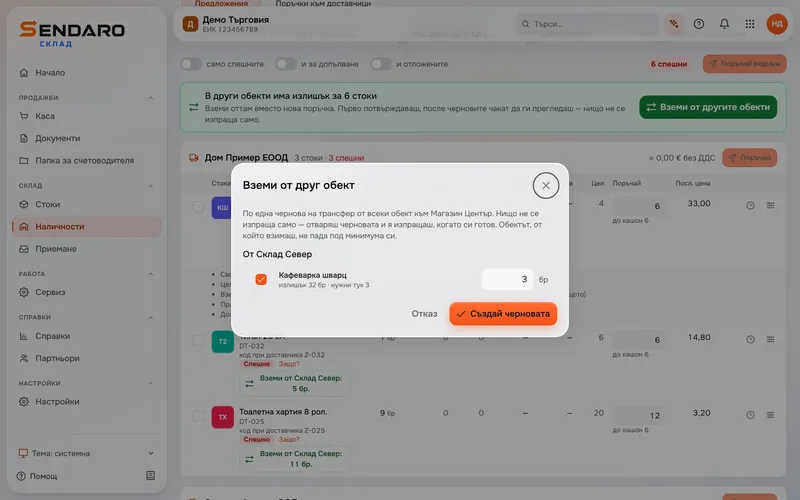
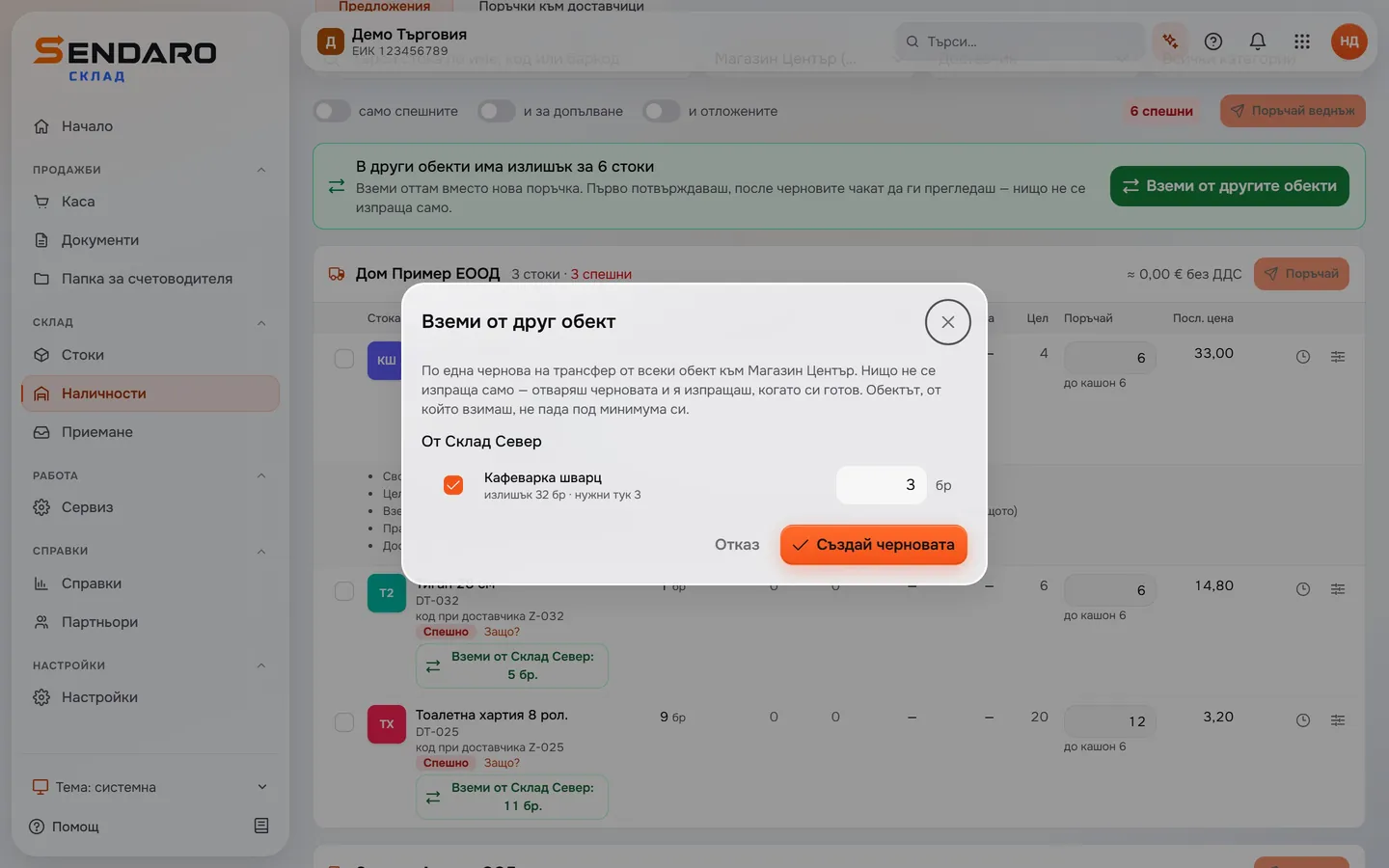
When another location has surplus, a button under the item shows where to take it from and how many – here, 3 from the North warehouse. Click it to create a transfer draft, then send it when you’re ready. The location you take from doesn’t drop below its minimum.
What you get
Know what to order, and why.
Rounded up to a full case
Sendaro works out what’s missing to reach the target and rounds up to a full case if the item is ordered by the case.
The calculation for every item
‘Why?’ shows the free stock, the minimum, the target and what’s on the way.
Grouped by supplier
Each supplier has its own list. Every item shows the supplier’s code for it and the last price.
A transfer instead of an order
When another location has surplus, take it from there without that location dropping below its minimum.
Questions
Questions about reorder suggestions.
How do I turn on reorder suggestions?
The ‘Reorder suggestions’ module is off by default. Turn it on in Settings → Modules.
How is the quantity to order worked out?
Sendaro looks at sales and minimums. It takes the free stock plus what’s on the way and works out how much is missing to reach the target. It rounds up to a full case if the item is ordered by the case, and ‘Why?’ shows the calculation for each item.
Can I take the stock from another location?
Yes. If another location has surplus, create a transfer draft instead of a new order. Nothing is sent automatically: you open the draft and send it when you’re ready. The location you take from doesn’t drop below its minimum.
Can I see each location on its own?
Yes. Pick the location at the top to see what’s missing there. The supplier and category filters narrow the list.
More features