


- Home
- Sendaro Warehouse
- Labels and barcodes

Print price and barcode labels with your own template.
For online shops in Bulgaria.
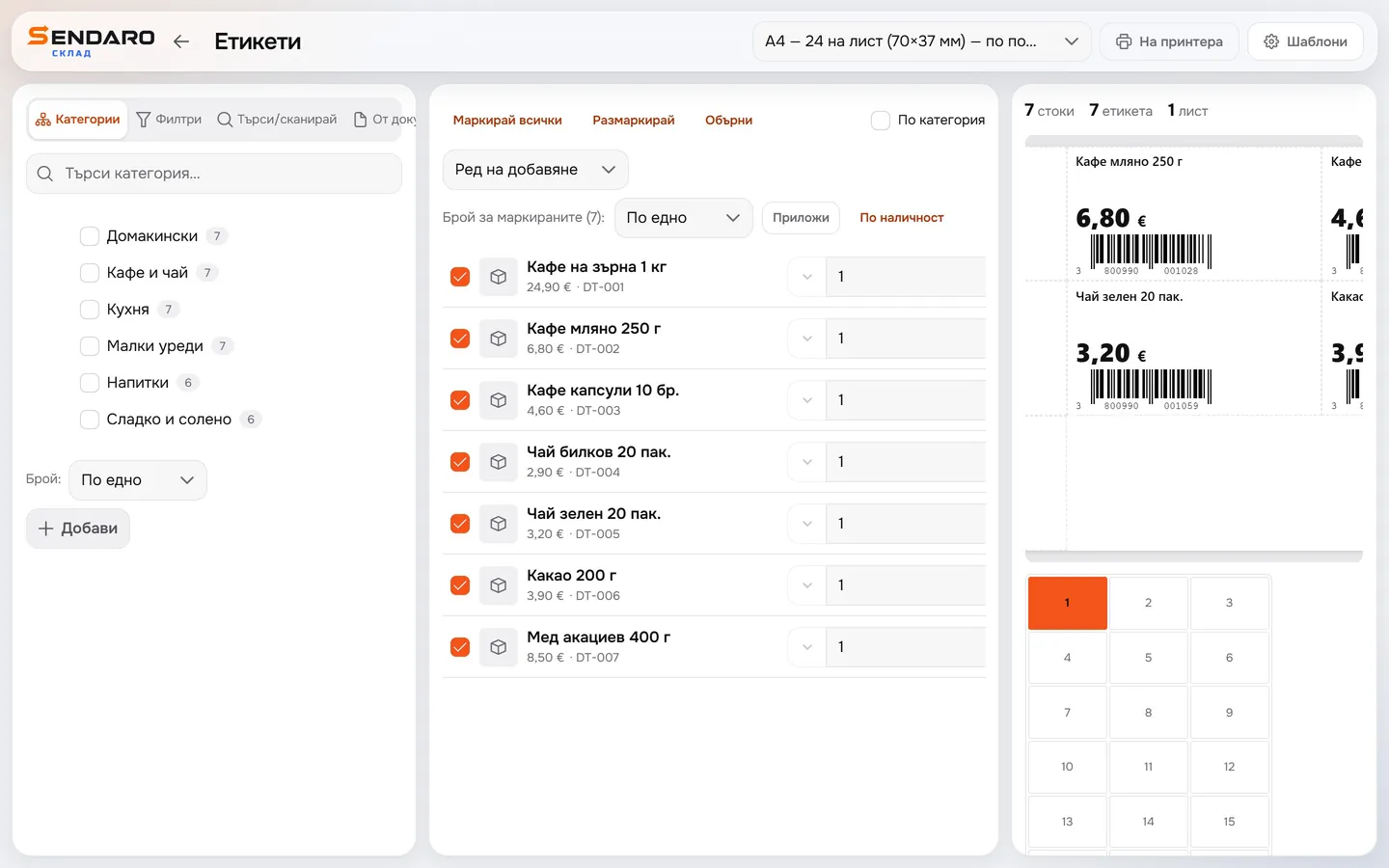
Add products by category, by search or scanner, or from a document. See how many labels and sheets you’ll get, then print on an A4 sheet or a roll.
14 days free · No card · No contract
How it works
From products to a sheet of labels.
Real Sendaro Warehouse screens, with a demo company and made-up data.
- 01
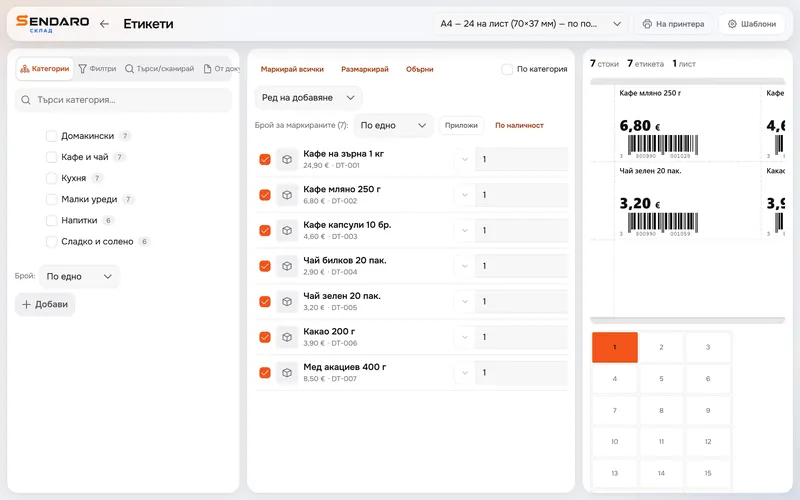
Choose the template
In the top bar, choose a template for an A4 sheet or a roll. The ‘Templates’ button takes you to settings, where you make your own in the designer.
- 02
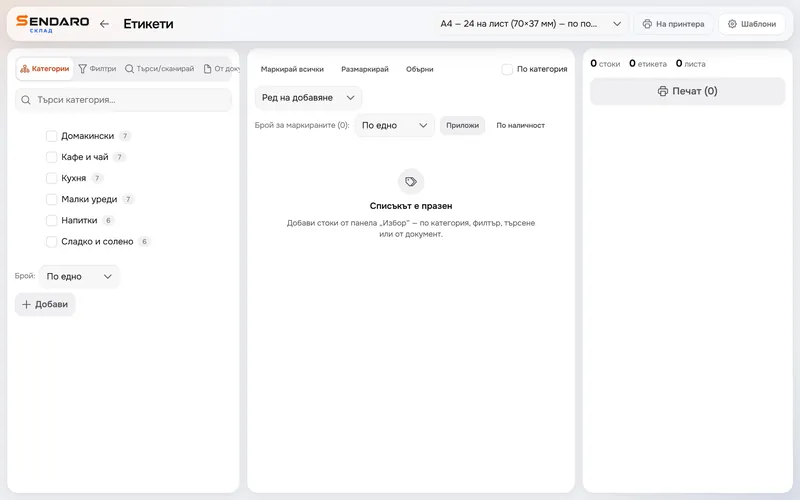
Add the products
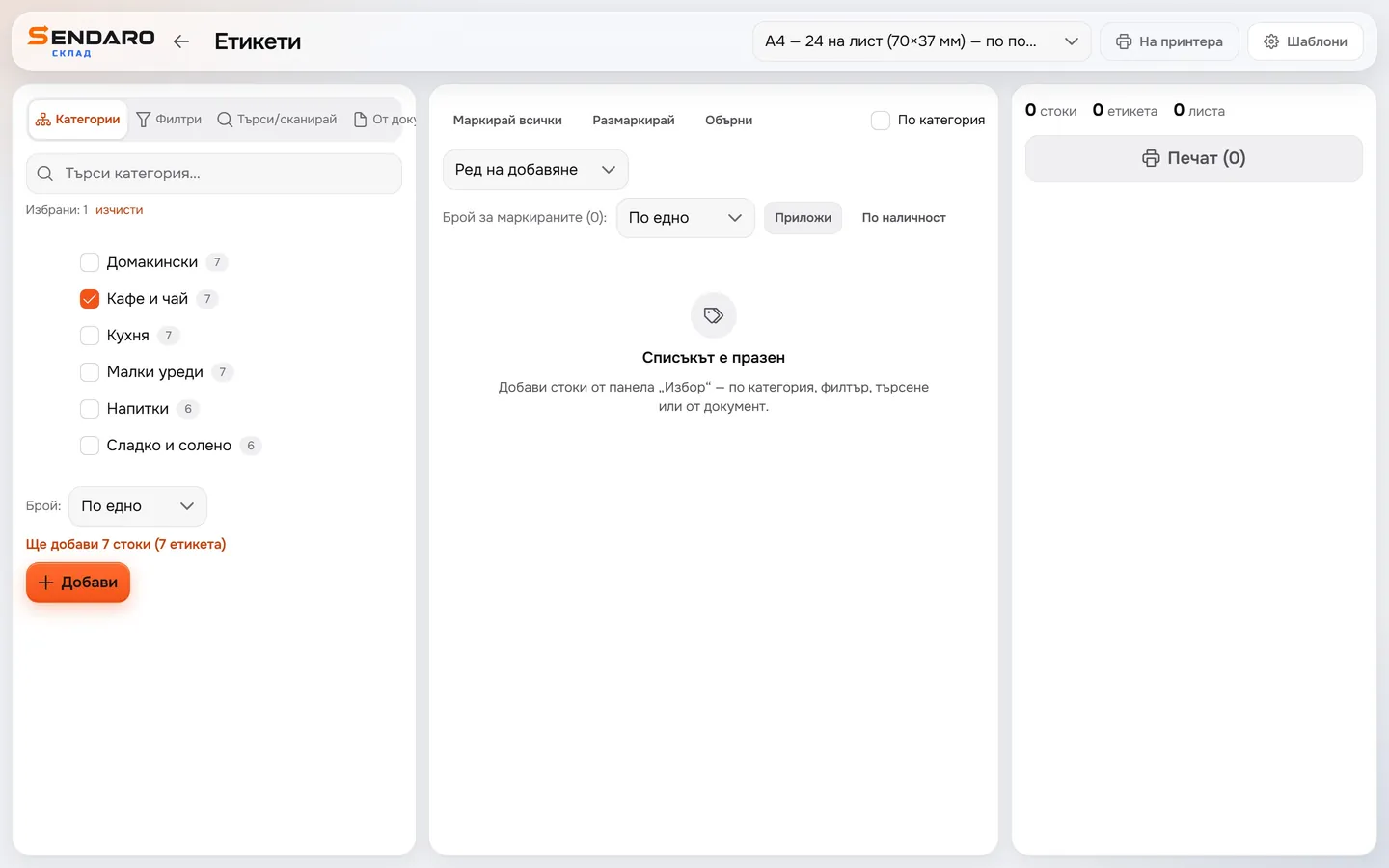
Pick them by category, with a filter, by search or scanner, or from a document.
- 03
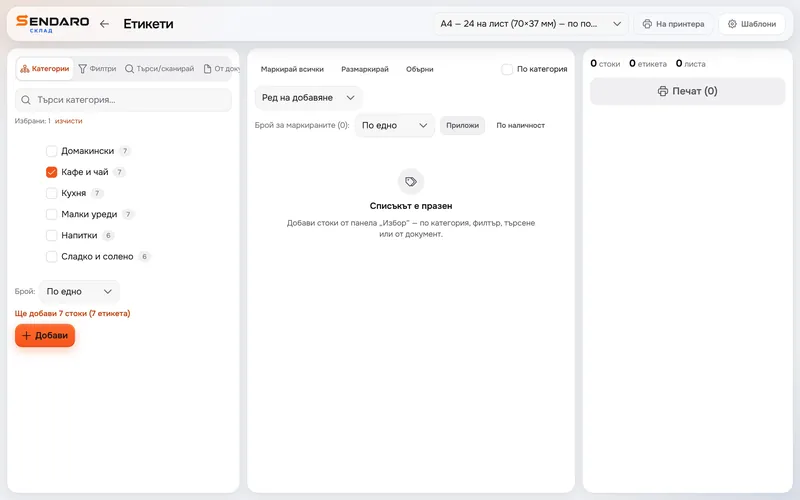
Tick a whole category
Even before you click ‘Add’, you see how many products and labels will go on the list.
- 04
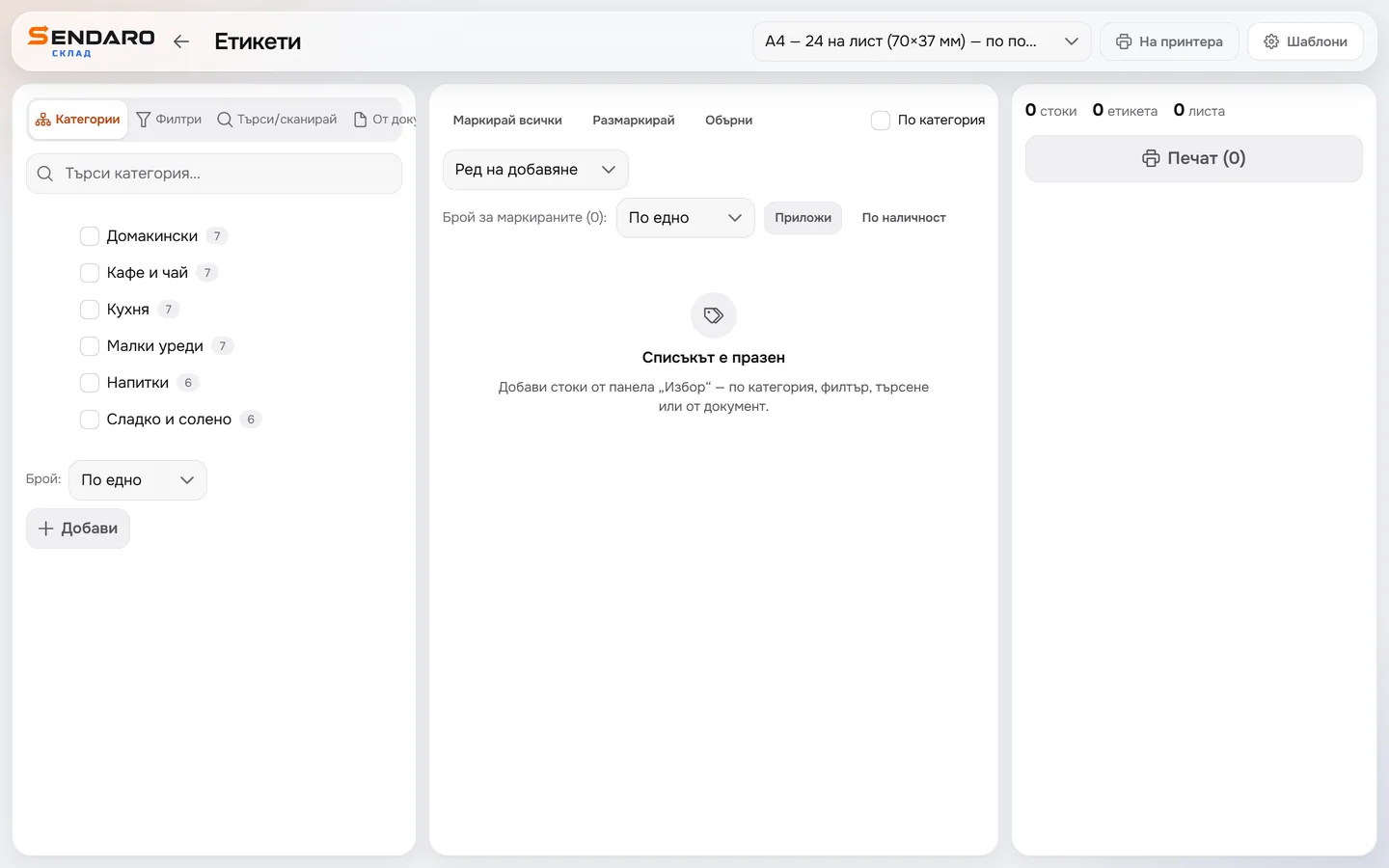
Set the quantity
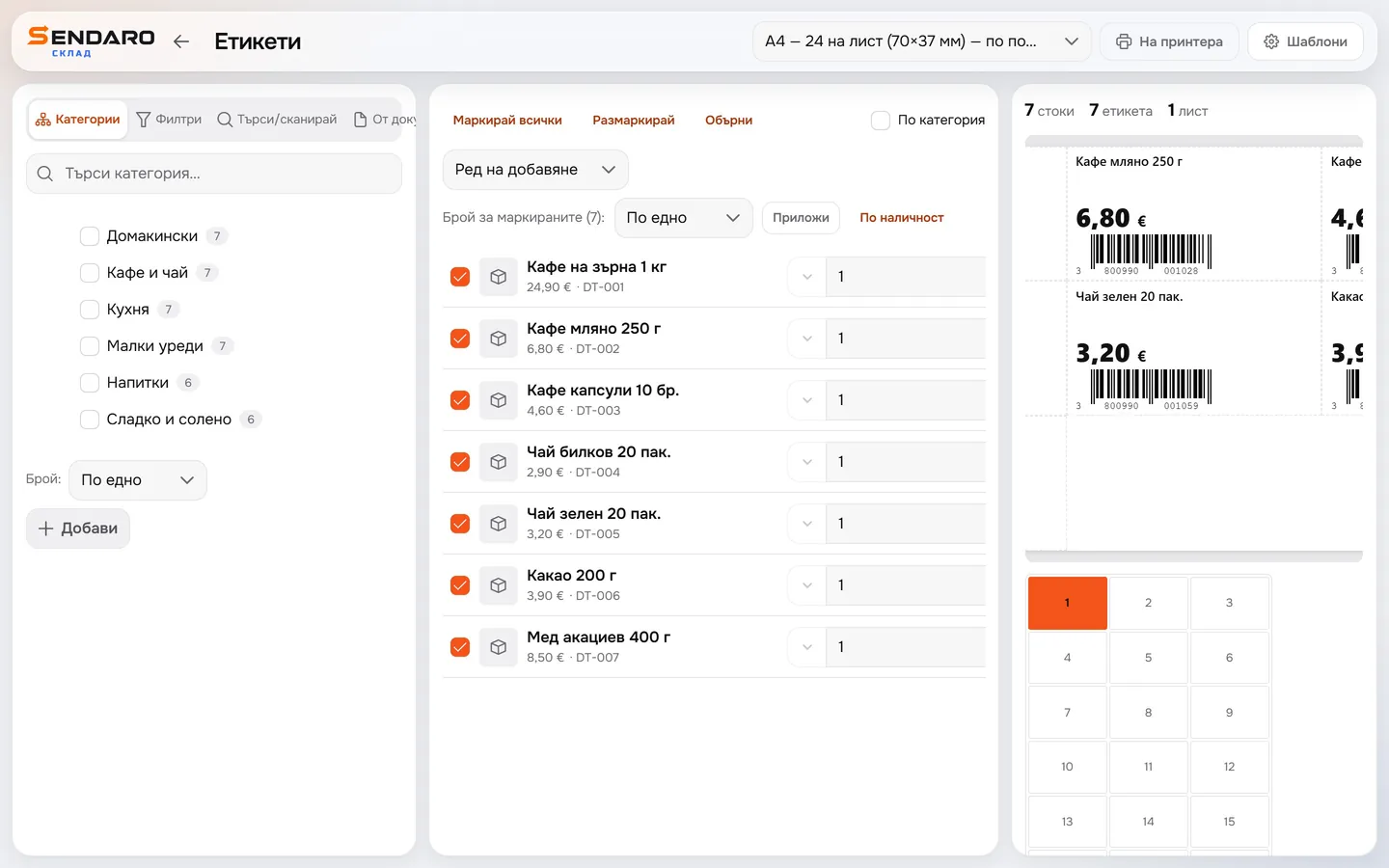
Print one label per product, or as many as you have in stock. You can also change the quantity on each row.
- 05
Preview the sheet before printing
The sheet appears on the right, with each product’s name, price and barcode. Above it, you see how many products, labels and sheets you’ll print.
What you get
Labels come out ready for the shelf and the till.
A whole category at once
Tick a category and all its products go on the print list, without looking them up one by one.
A barcode the till can read
The label carries the product’s barcode. Scan it at the till and the item is on the receipt.
Your own template
In the designer in settings, you set the label’s size and layout, for an A4 sheet or a roll.
Finish a part-used sheet
Choose the cell where printing starts. That way you can also use a sheet with some labels already peeled off.
Questions
Questions about labels.
What are the labels printed on?
On an A4 sheet or a roll, depending on the template. You choose the template at the top of the ‘Labels’ page.
How do I change how a label looks?
Change it in the template designer in settings. You get there from the ‘Labels’ page with the ‘Templates’ button.
Can I finish a part-used A4 sheet?
Yes. Below the preview, choose the cell where printing should start. The cells before it stay empty.
How do I print labels for a new delivery?
In the ‘From document’ section, you add the products from the delivery document. With the ‘Quick stock receiving’ module, you can also print labels for new items as you receive them. The module is off by default; turn it on in Settings → Modules.
More features