


- Home
- Sendaro Warehouse
- Transfers between locations

See what’s in transit and what has actually arrived.
For online shops in Bulgaria.
Stock you send between locations shows as ‘In transit’. When it arrives, scan it with a scanner or your phone’s camera and see what’s missing. What you receive goes into that location’s stock.
14 days free · No card · No contract
How it works
From the warehouse to the shop’s stock.
Real Sendaro Warehouse screens, with a demo company and made-up data.
- 01
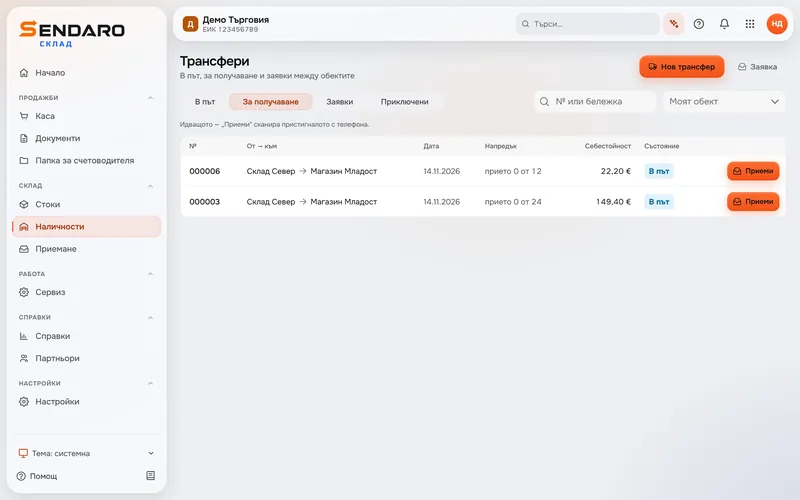
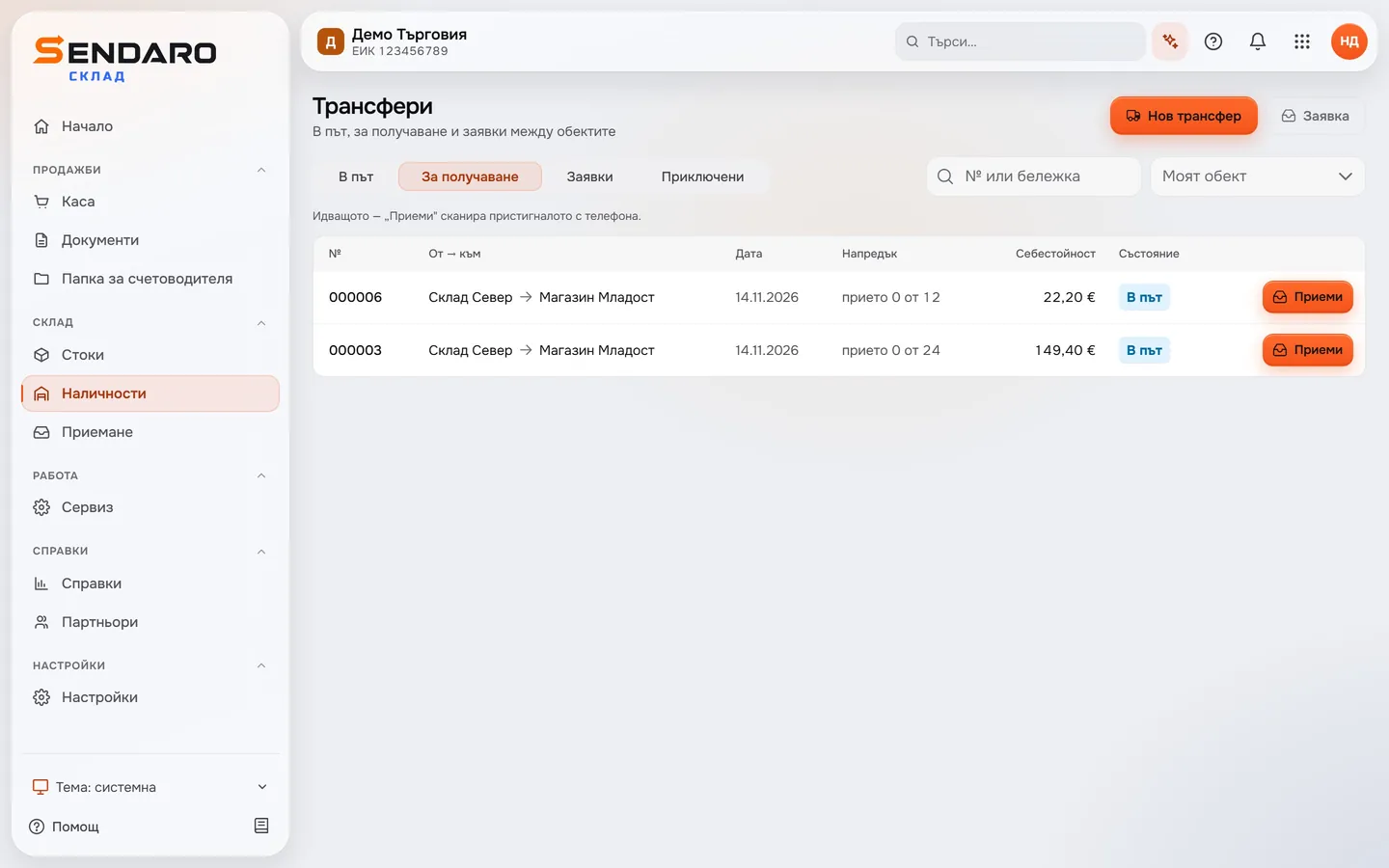
See what’s coming to your location
Shipments to your location sit under ‘To receive’ with the status ‘In transit’. You see where each one comes from, how much has been received and its cost price.
- 02
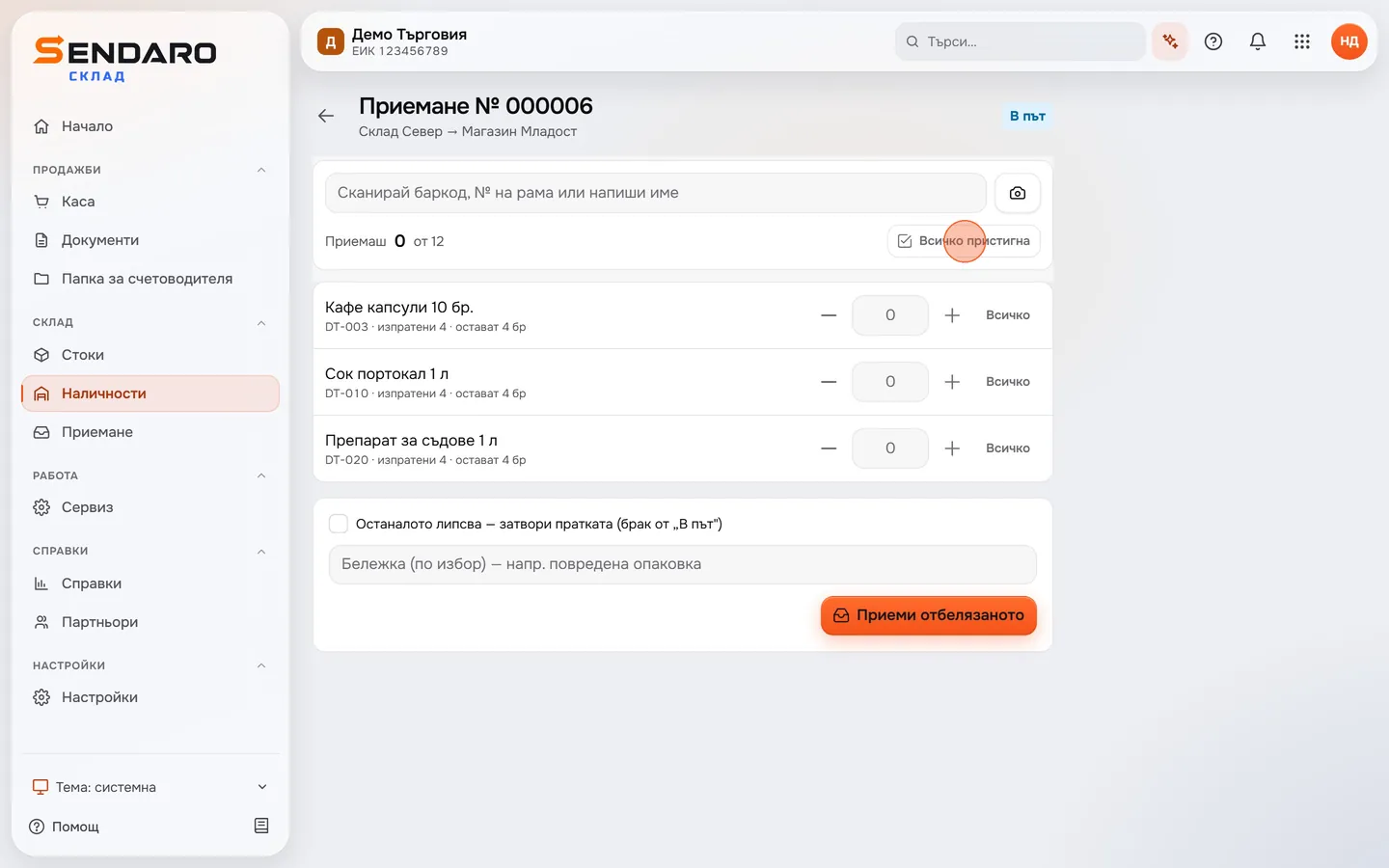
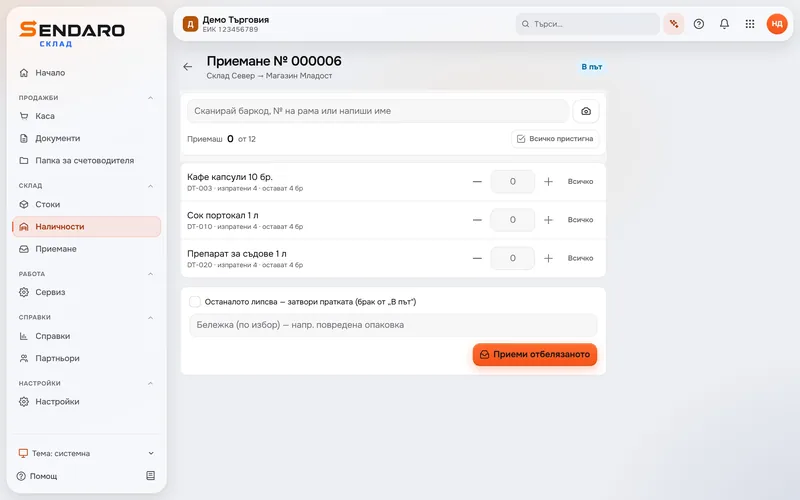
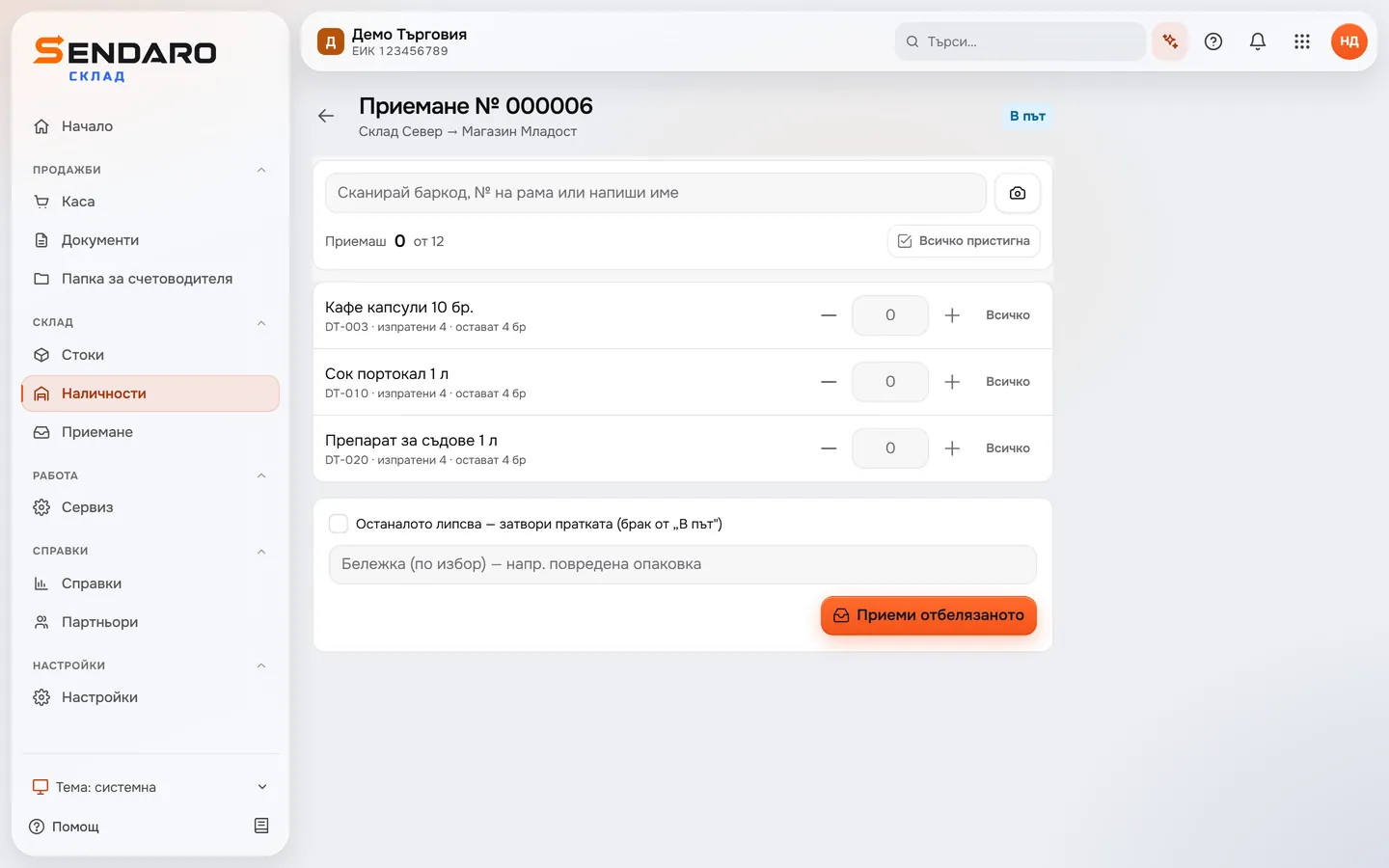
Open the shipment and scan
‘Receive’ opens the shipment with everything that was sent. Scan the barcode with a scanner or your phone’s camera, or type the name. Each line shows how many are left.
- 03
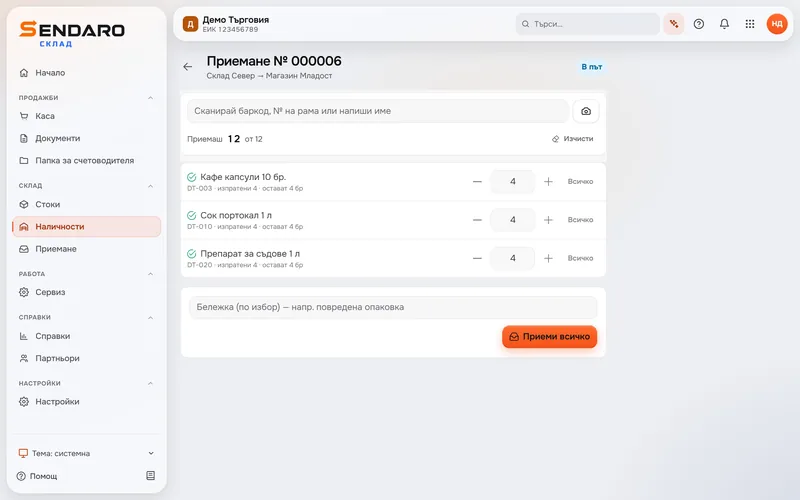
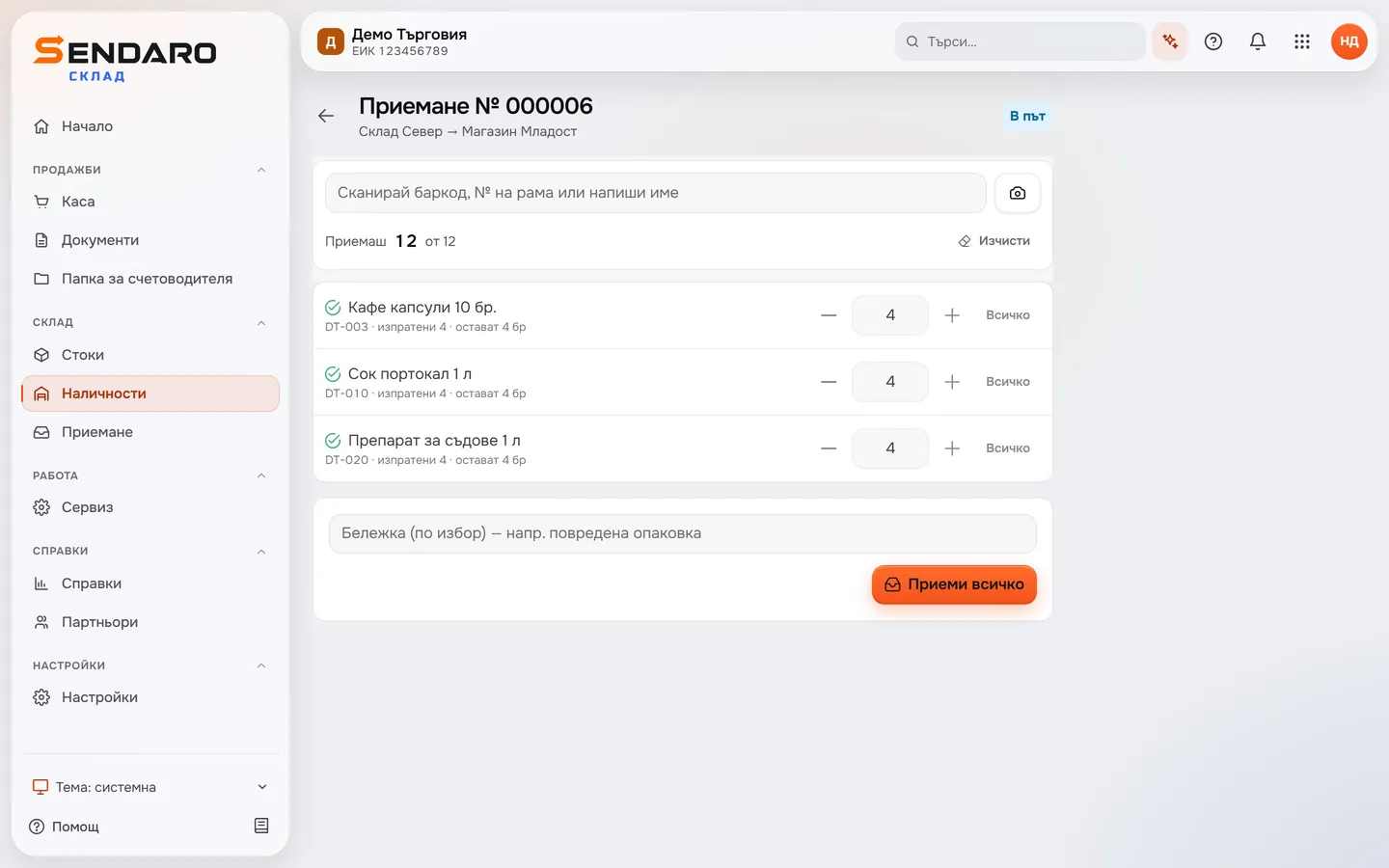
Mark what has arrived
Scan, count with ‘+’ and ‘−’, or tap ‘All arrived’. A complete line gets a green tick, and the top shows how many you’re receiving: here, 12 of 12.
- 04
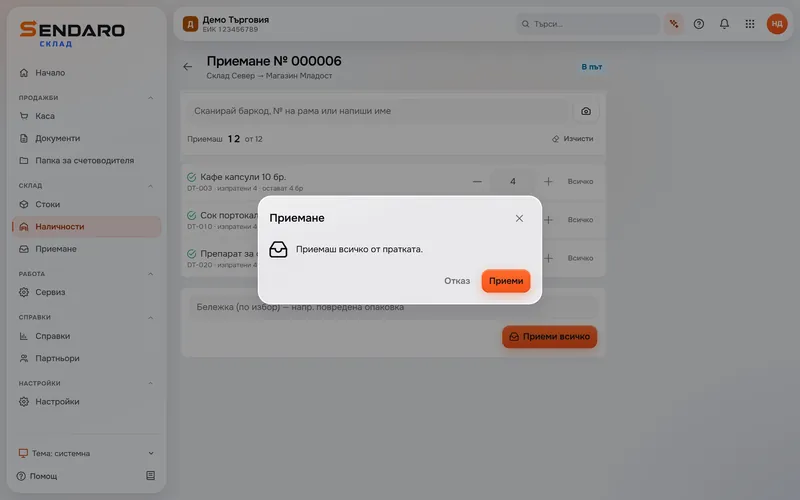
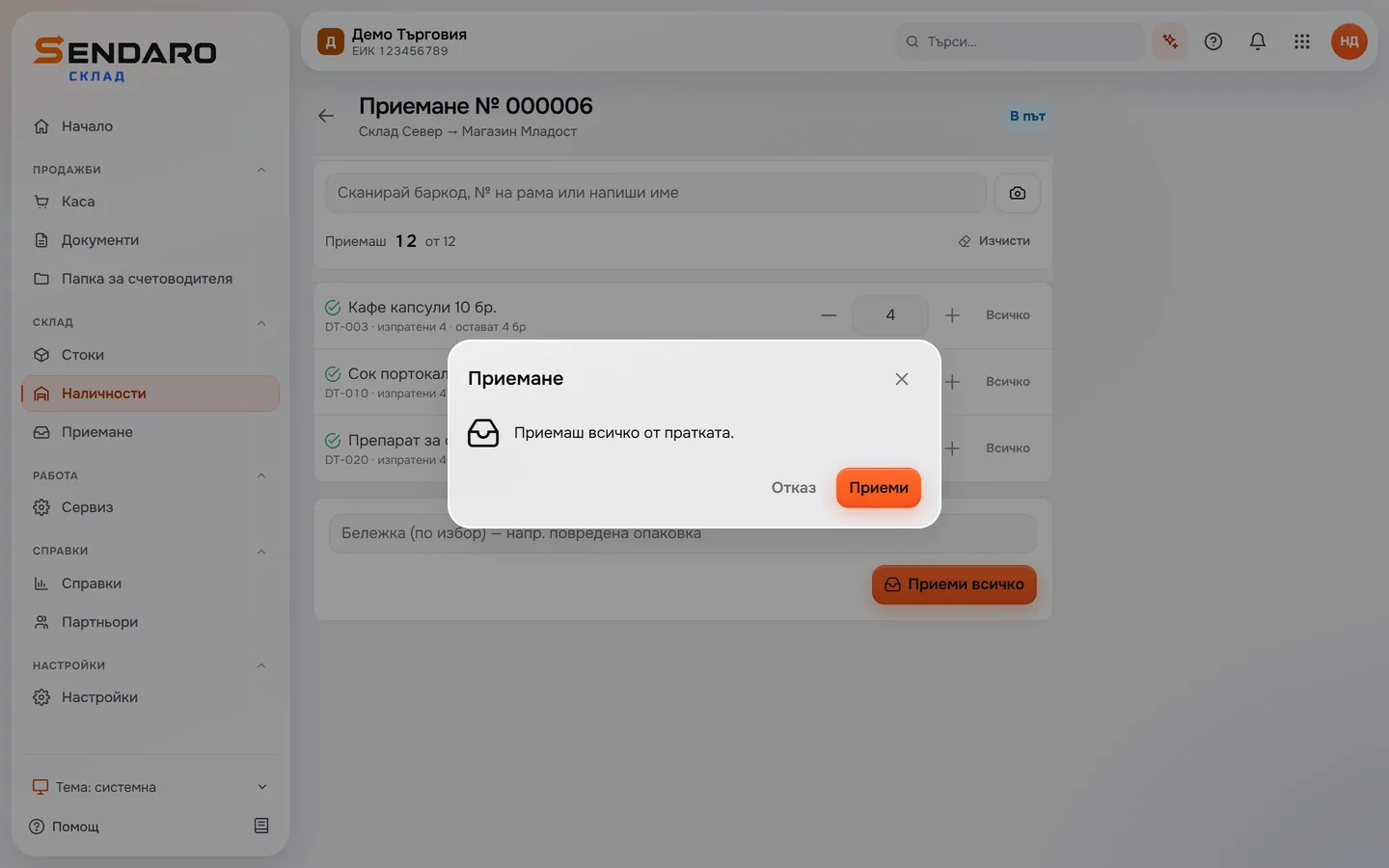
Confirm what you’re receiving
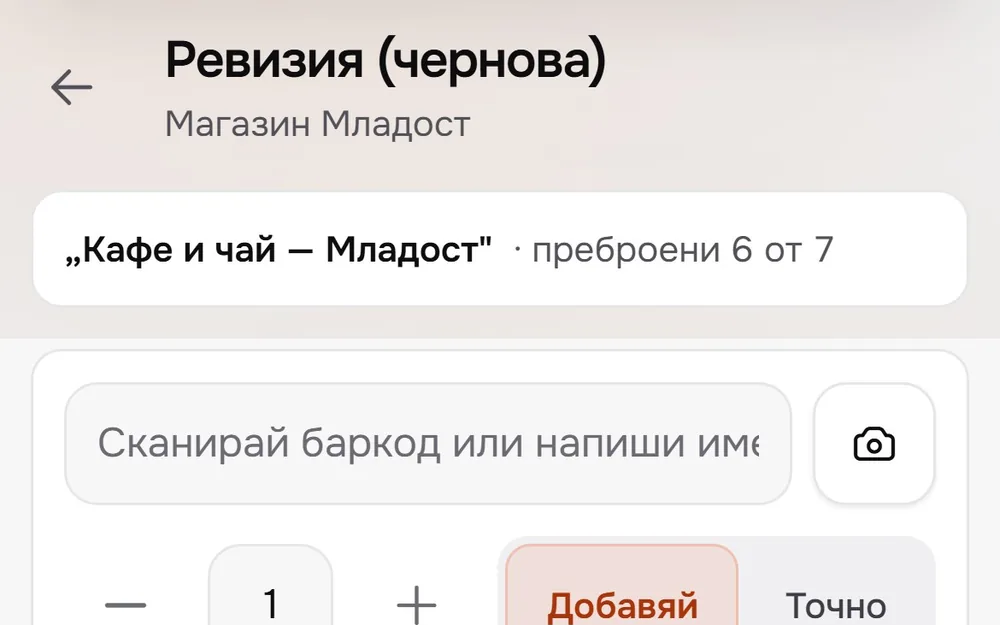
‘Receive all’ asks you to confirm. After ‘Receive’, the items go into stock at the Mladost shop.
What you get
Know where your stock is.
Follow every shipment
For every shipment, see where it’s from, where it’s going and how much of it has been received.
Receive with a scanner or the camera
Scan with a scanner or, if you don’t have one, your phone’s camera. You can also type the name or count with ‘+’ and ‘−’.
See what’s missing
Each line shows how many are left. If something isn’t coming, close the shipment with a shortage. You can add a note, for example about damaged packaging.
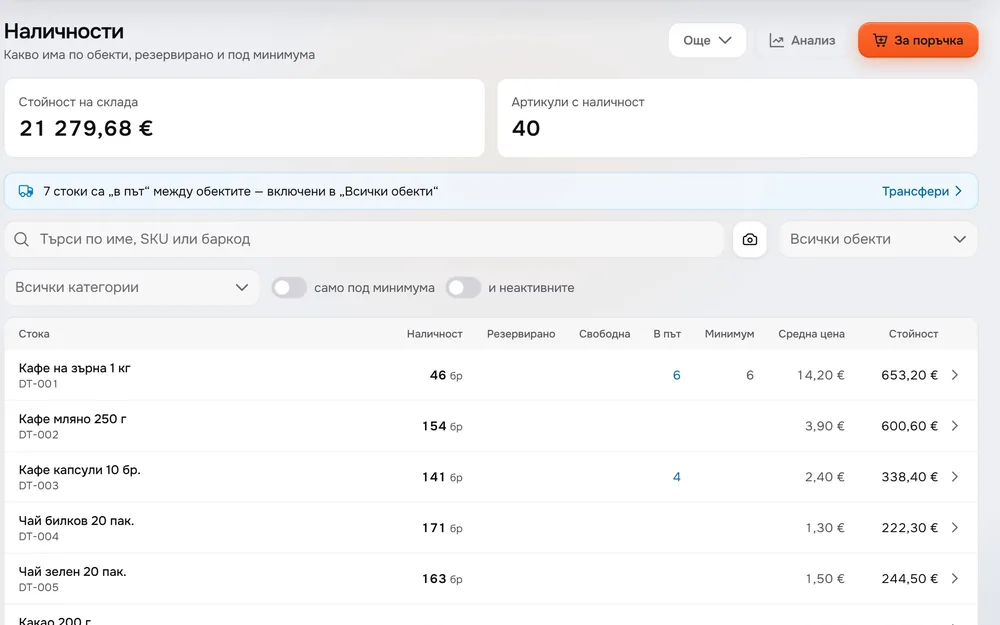
Stock in transit still counts
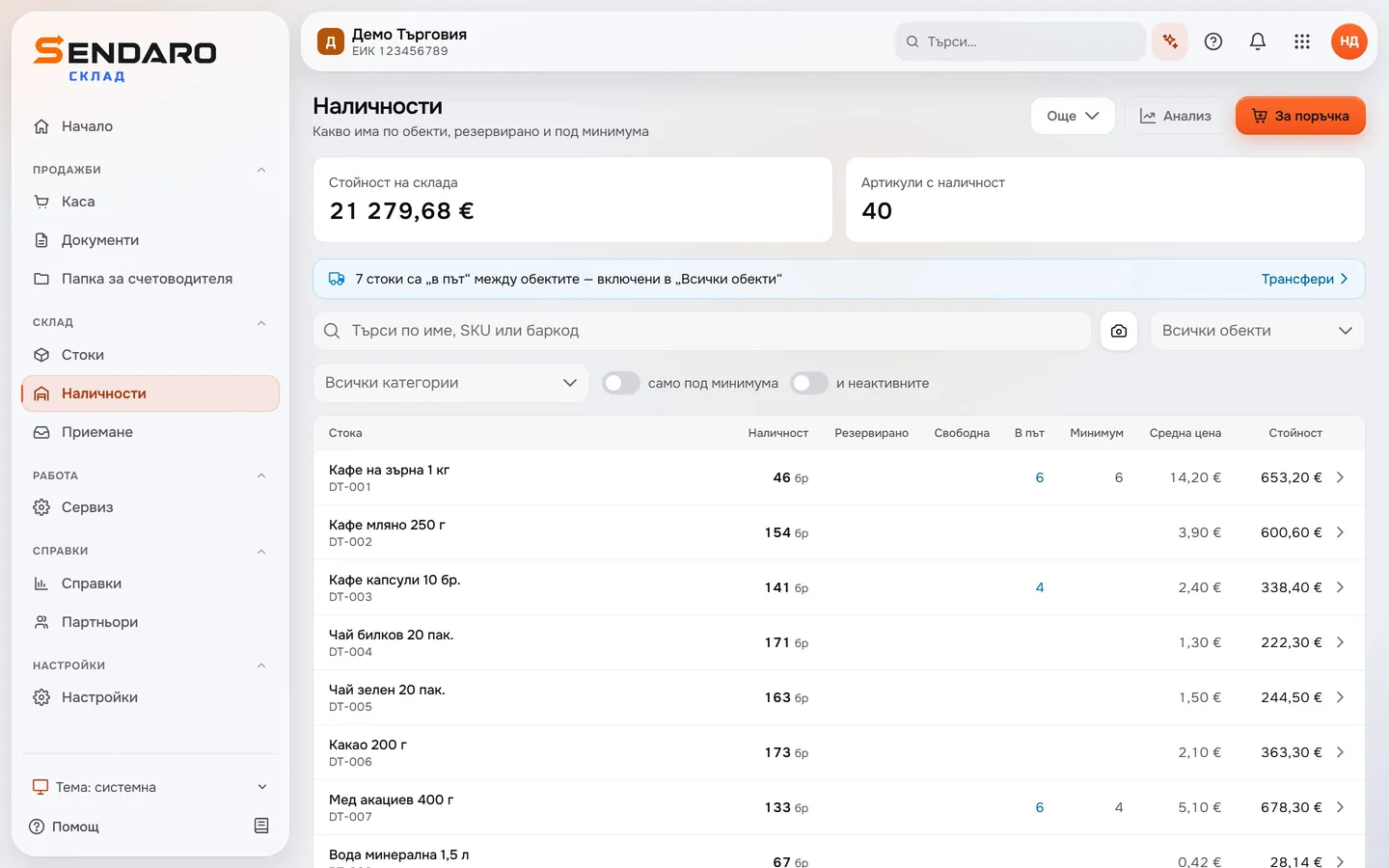
In ‘Stock’ it sits in the ‘In transit’ column and counts towards ‘All locations’. Once received, it’s part of that location’s stock.
Up close
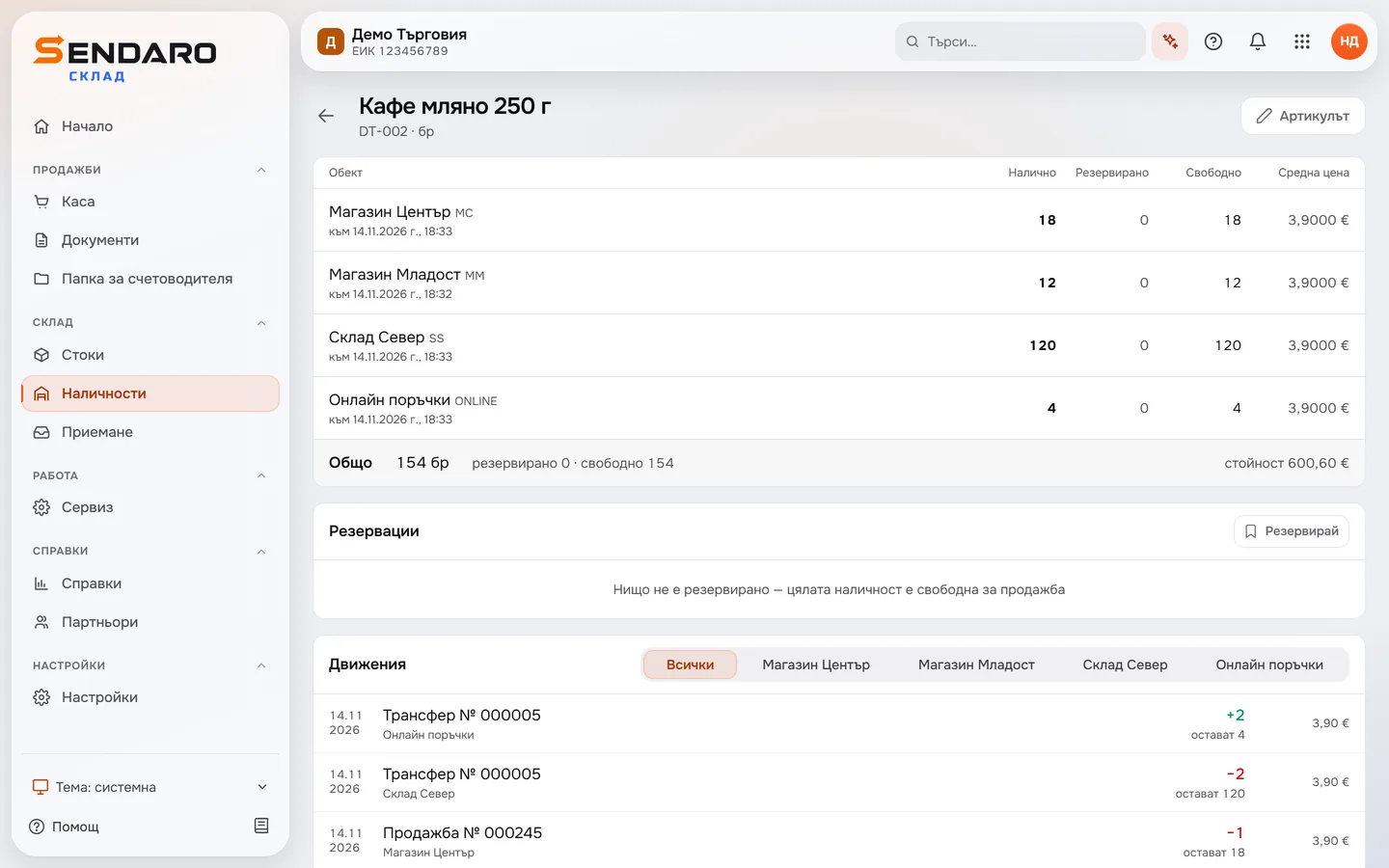
Transfers show in your stock too.
Questions
Questions about transfers.
Who are transfers for?
Businesses with more than one location, such as a warehouse and a shop. Every shipment between locations is a separate, numbered document.
What if something is missing?
Each line shows how many are left. Receive what has arrived with ‘Receive marked items’, and the rest stays in transit. If it isn’t coming, tick ‘The rest is missing’: the shipment closes and the shortage is written off from ‘In transit’ as waste. You can add a note, for example about damaged packaging.
Do I need a barcode scanner?
It’s not required. Without one, scan with your phone’s camera, type the product name, or count with ‘+’ and ‘−’.
How do I turn on transfers?
Two-step transfers are a module and are off by default. Turn them on in Settings → Modules, where the module is called ‘Transfer with “in transit”’.
More features