


- Home
- Sendaro Warehouse
- Receiving goods

Scan in deliveries and check them against the invoice.
For online shops in Bulgaria.
On a tablet or phone, scan the delivery and see, line by line, what the invoice says and what actually arrived. Print labels for new items, and if there’s no document, scan whatever came in.
14 days free · No card · No contract
How it works
From the invoice to received stock.
Real Sendaro Warehouse screens, with a demo company and made-up data.
- 01
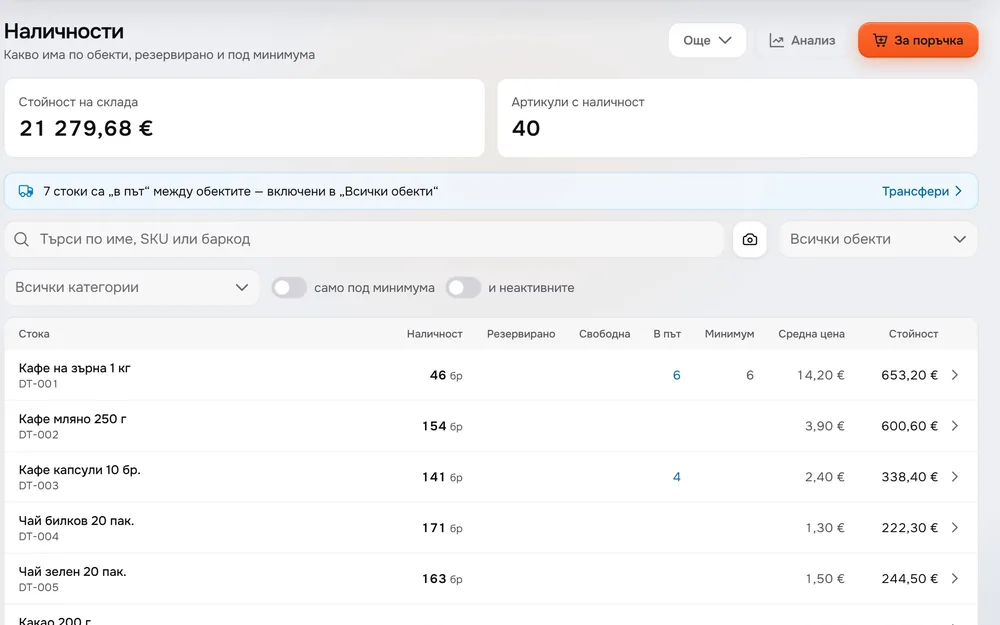
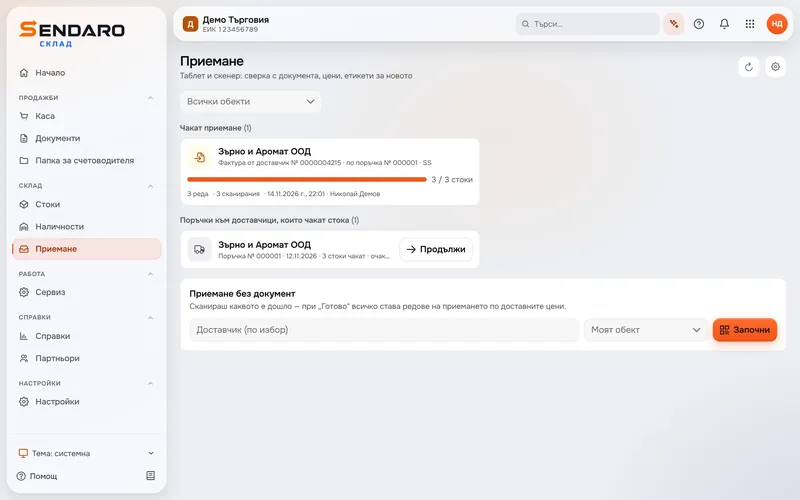
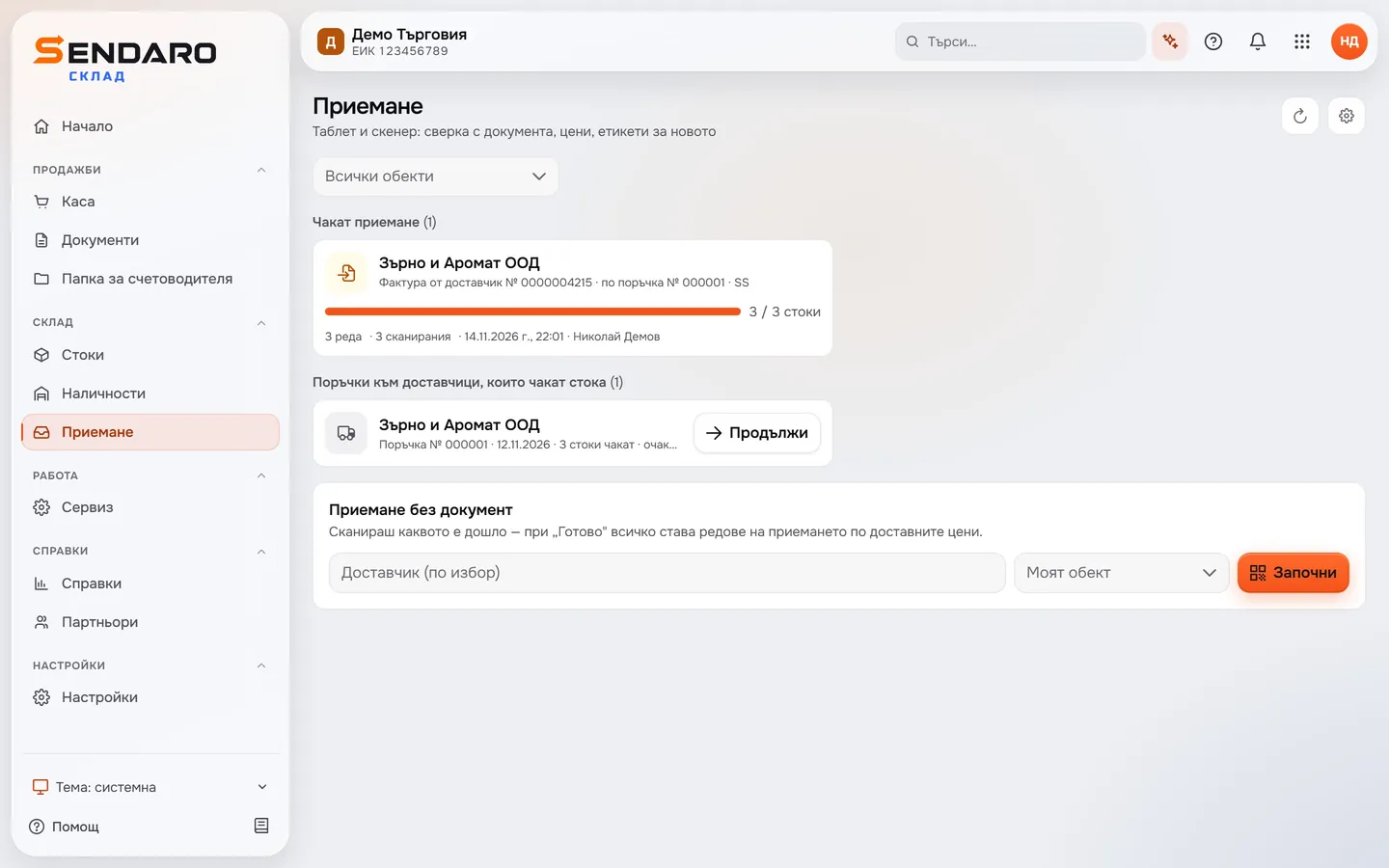
See what’s waiting to be received
The ‘Receiving’ page lists receiving drafts and supplier orders still waiting for goods. Here, the invoice from Zarno i Aromat Ltd for order No. 000001 is waiting.
- 02
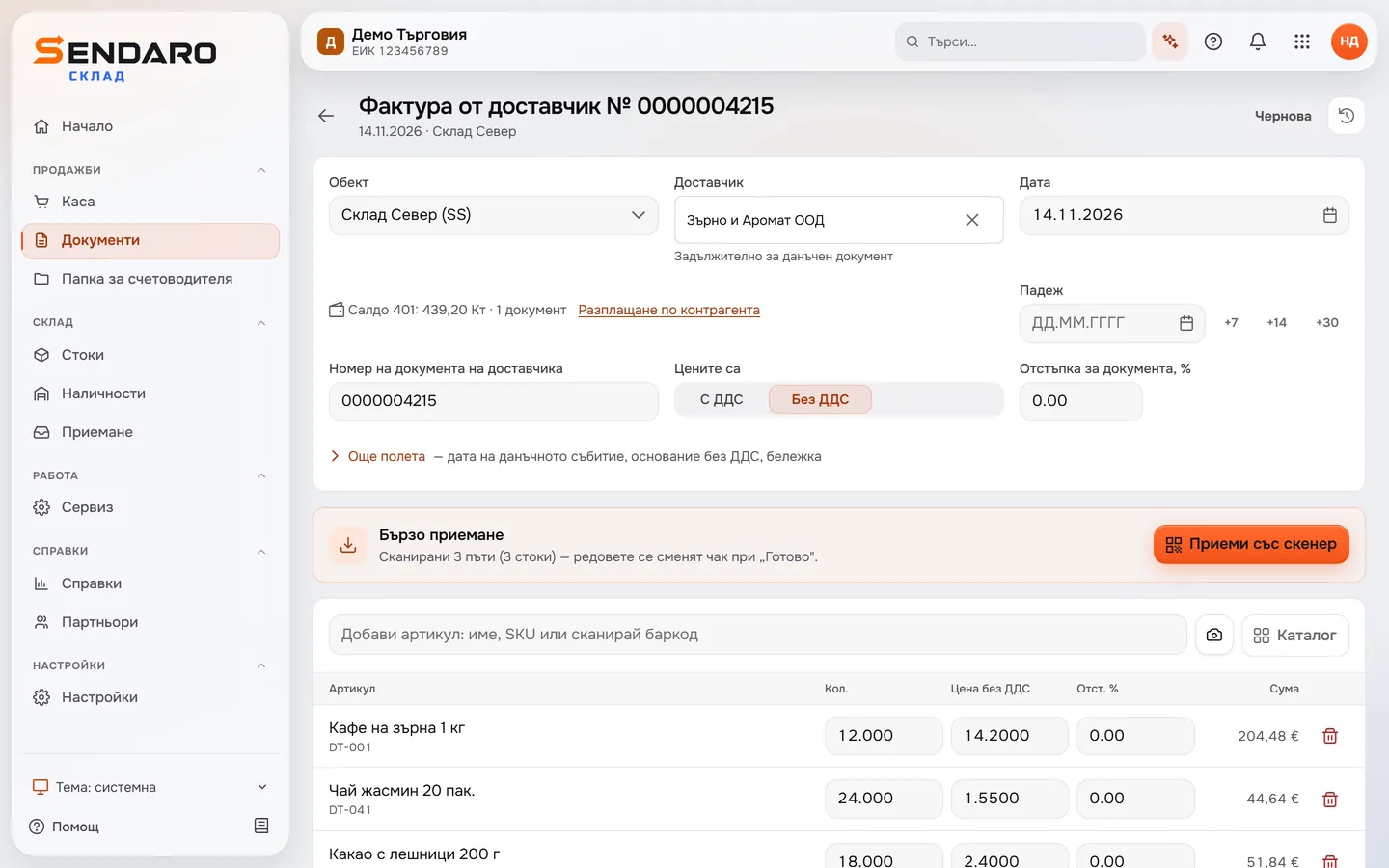
Open the invoice and choose ‘Receive with scanner’
The supplier’s invoice comes with the lines from the order. ‘Receive with scanner’ opens quick receiving, and the invoice lines only change when you tap ‘Done’.
- 03
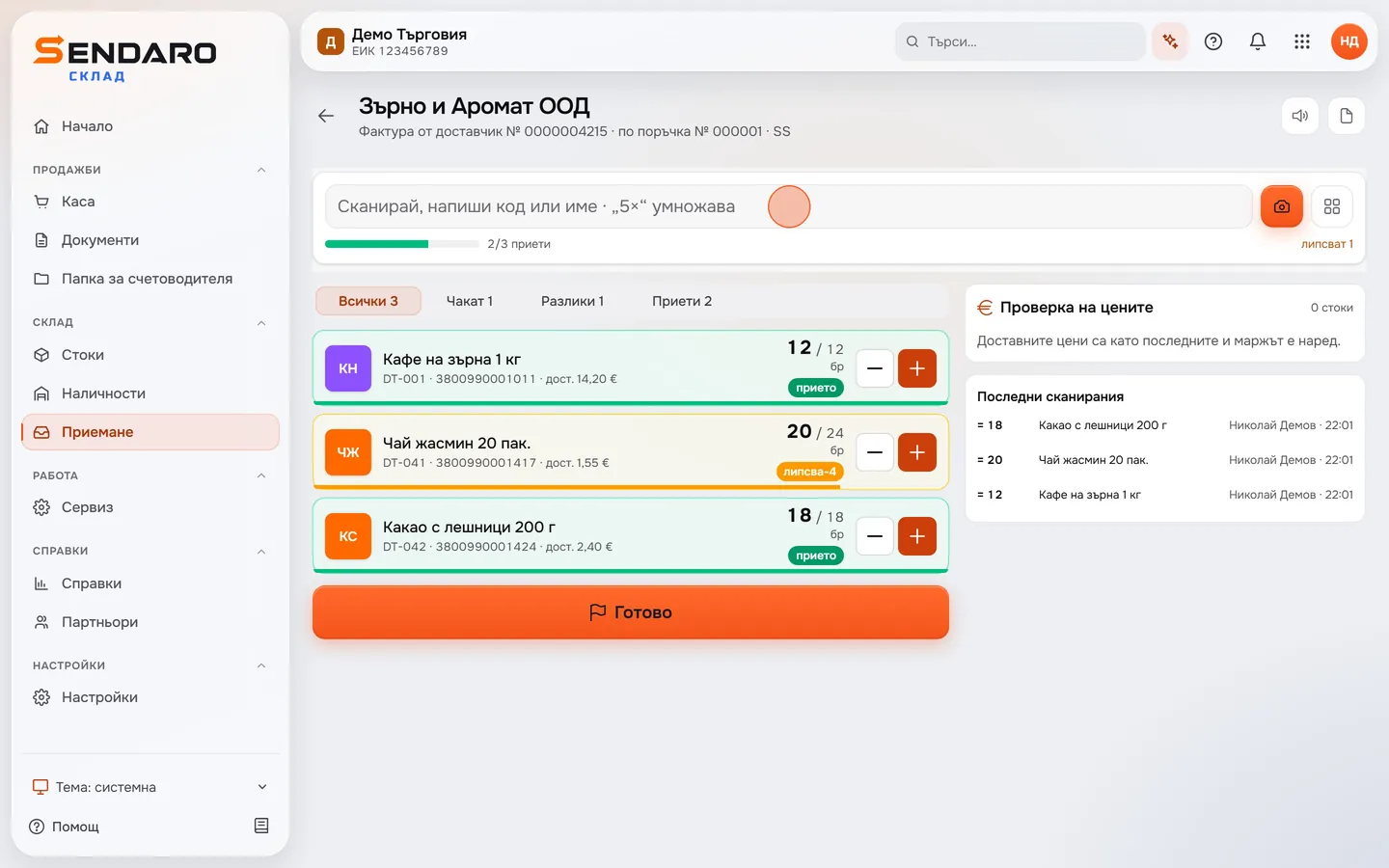
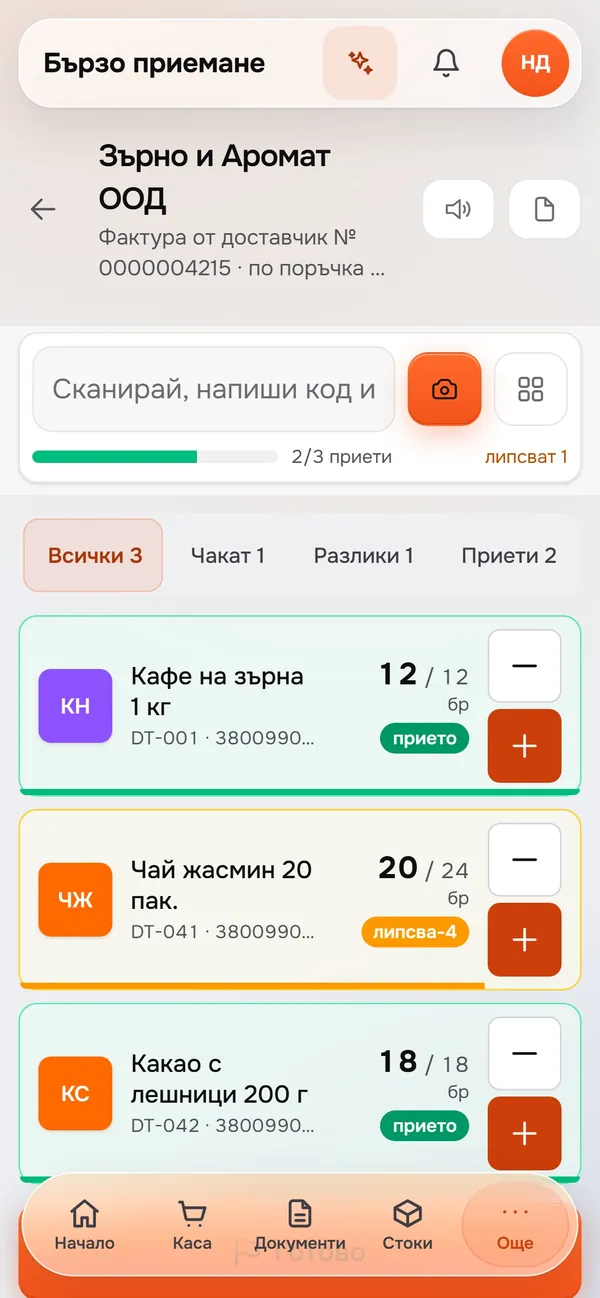
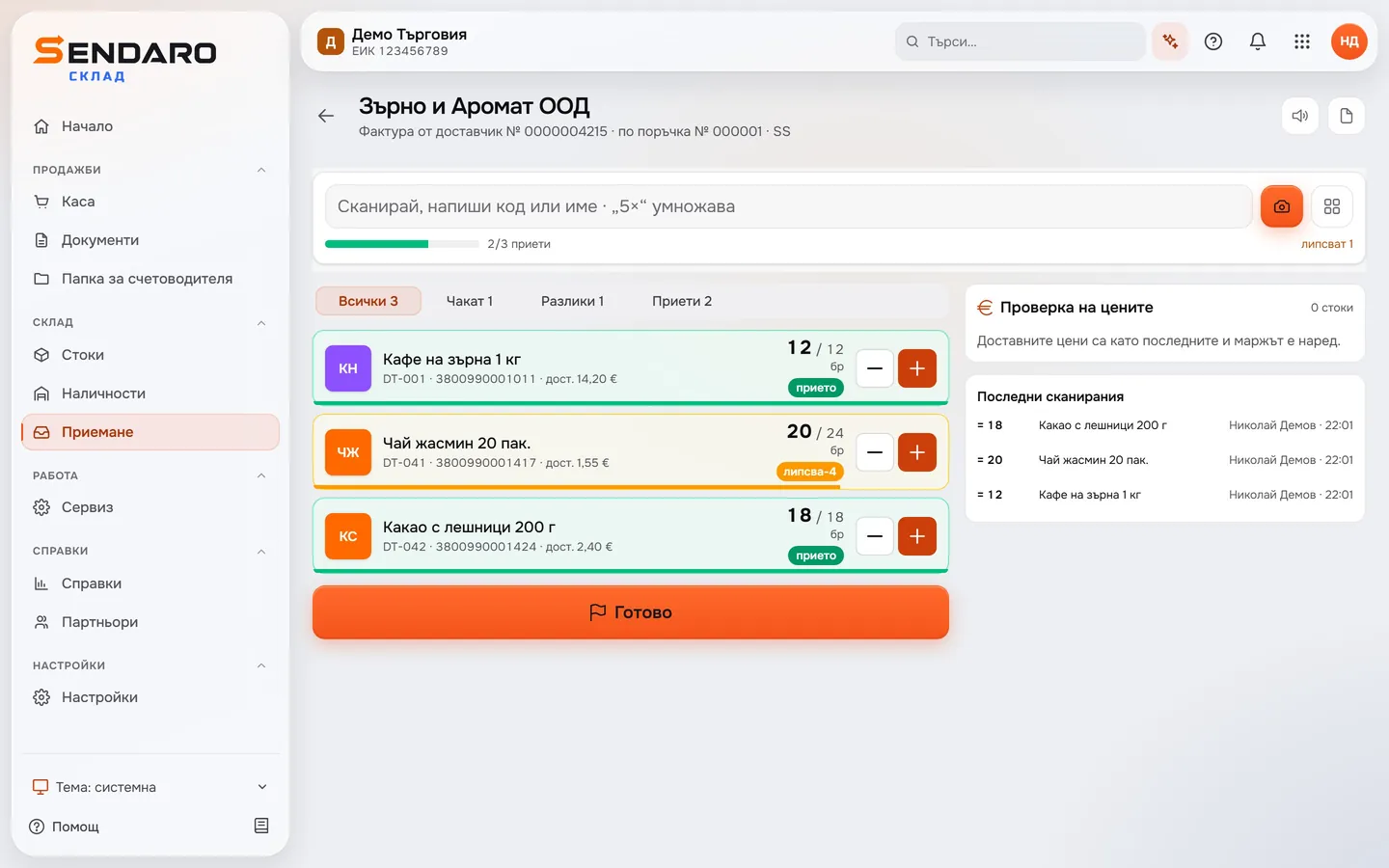
See expected against scanned
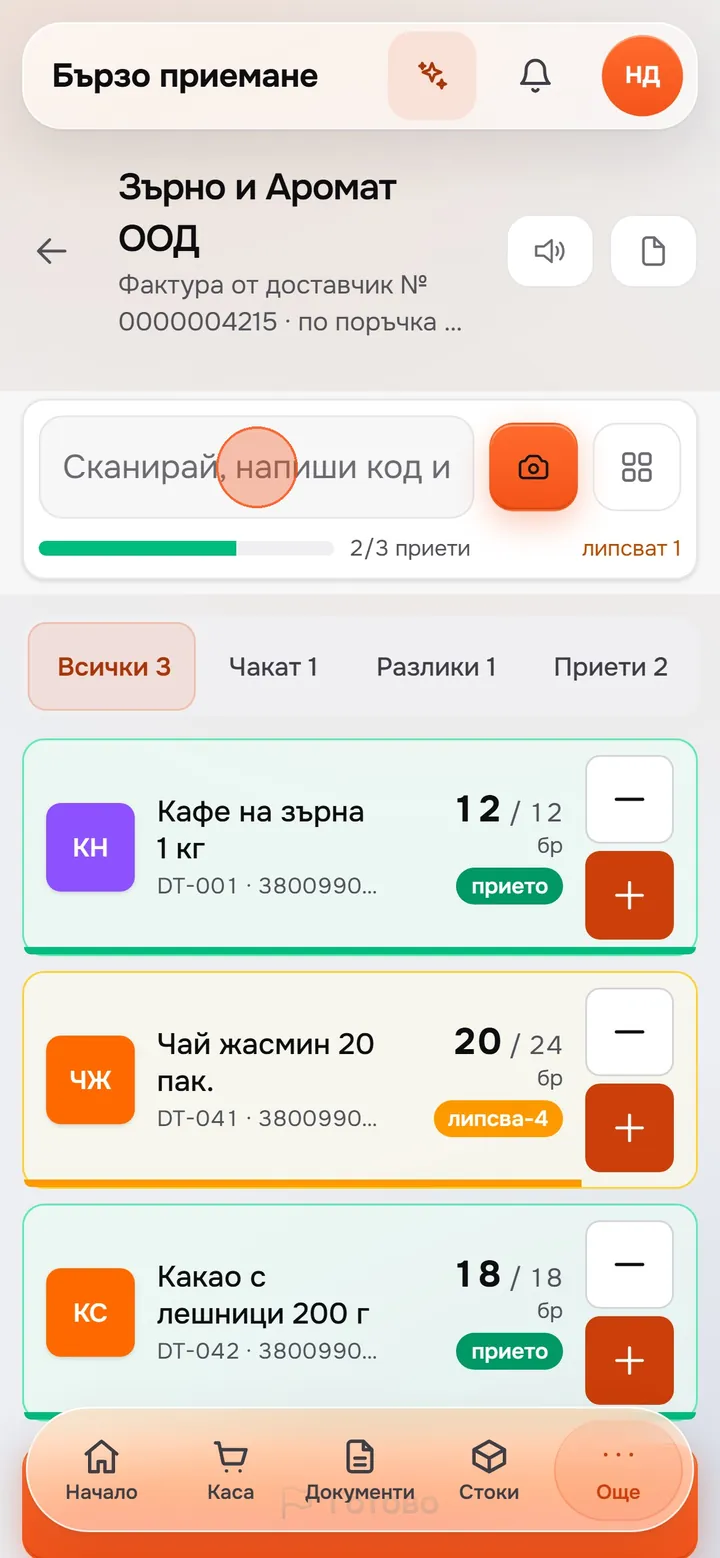
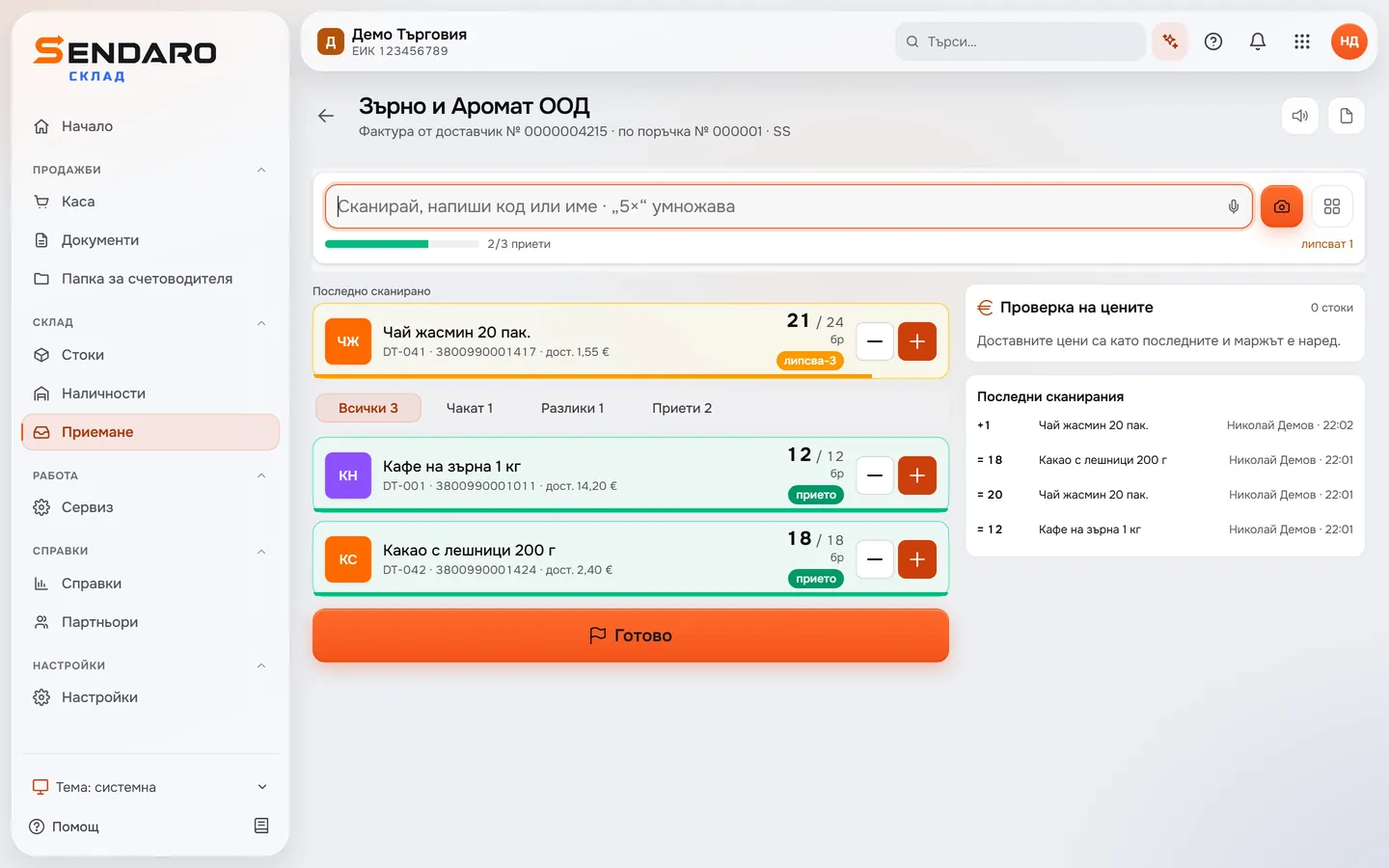
Every line shows what the invoice says and what you’ve scanned. 20 of 24 packs of jasmine tea have arrived, so that line shows a shortage. On the right, ‘Price check’ compares purchase prices with the previous ones.
- 04
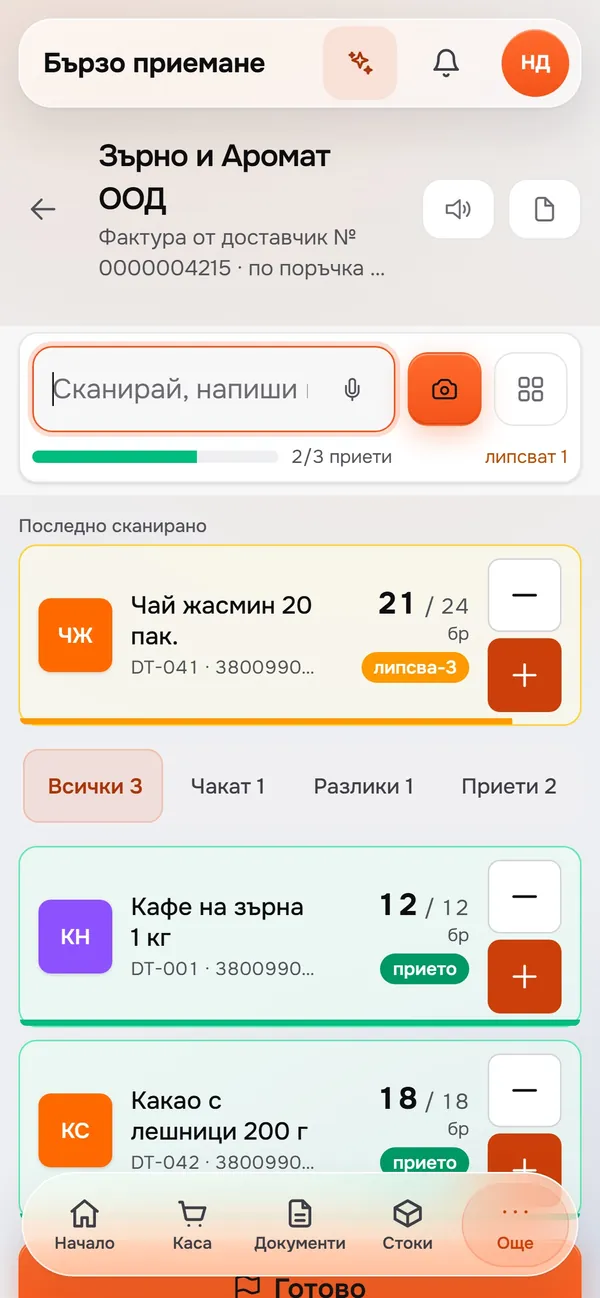
Scan and the count goes up
Scan the barcode and the item’s line fills up. The jasmine tea is now at 21 of 24, with 3 still missing.
- 05
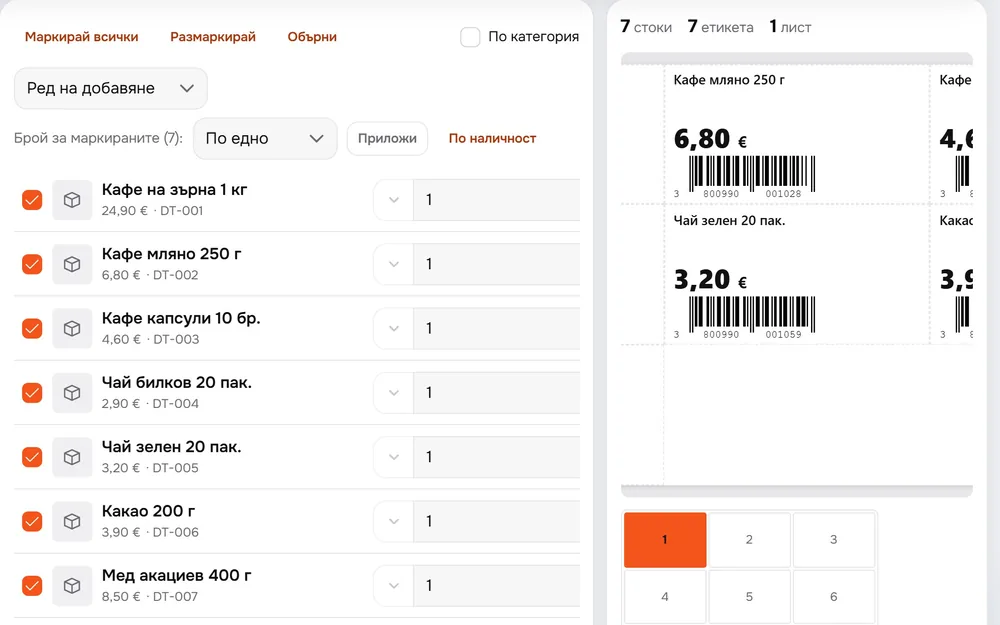
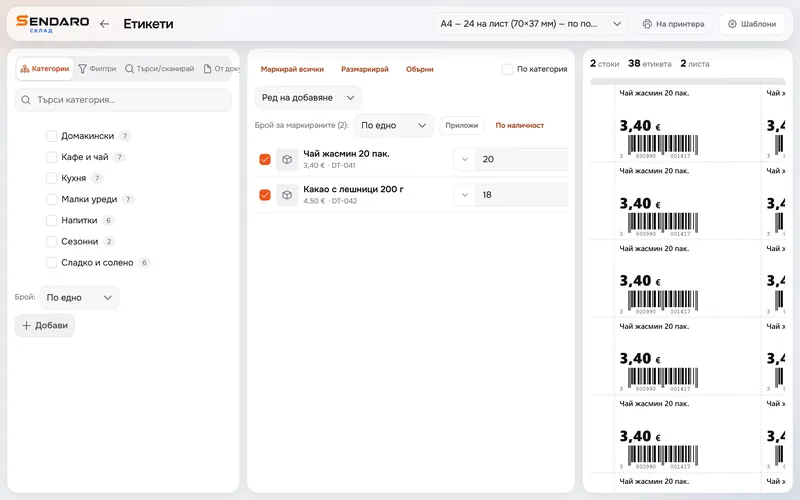
Print labels for new items
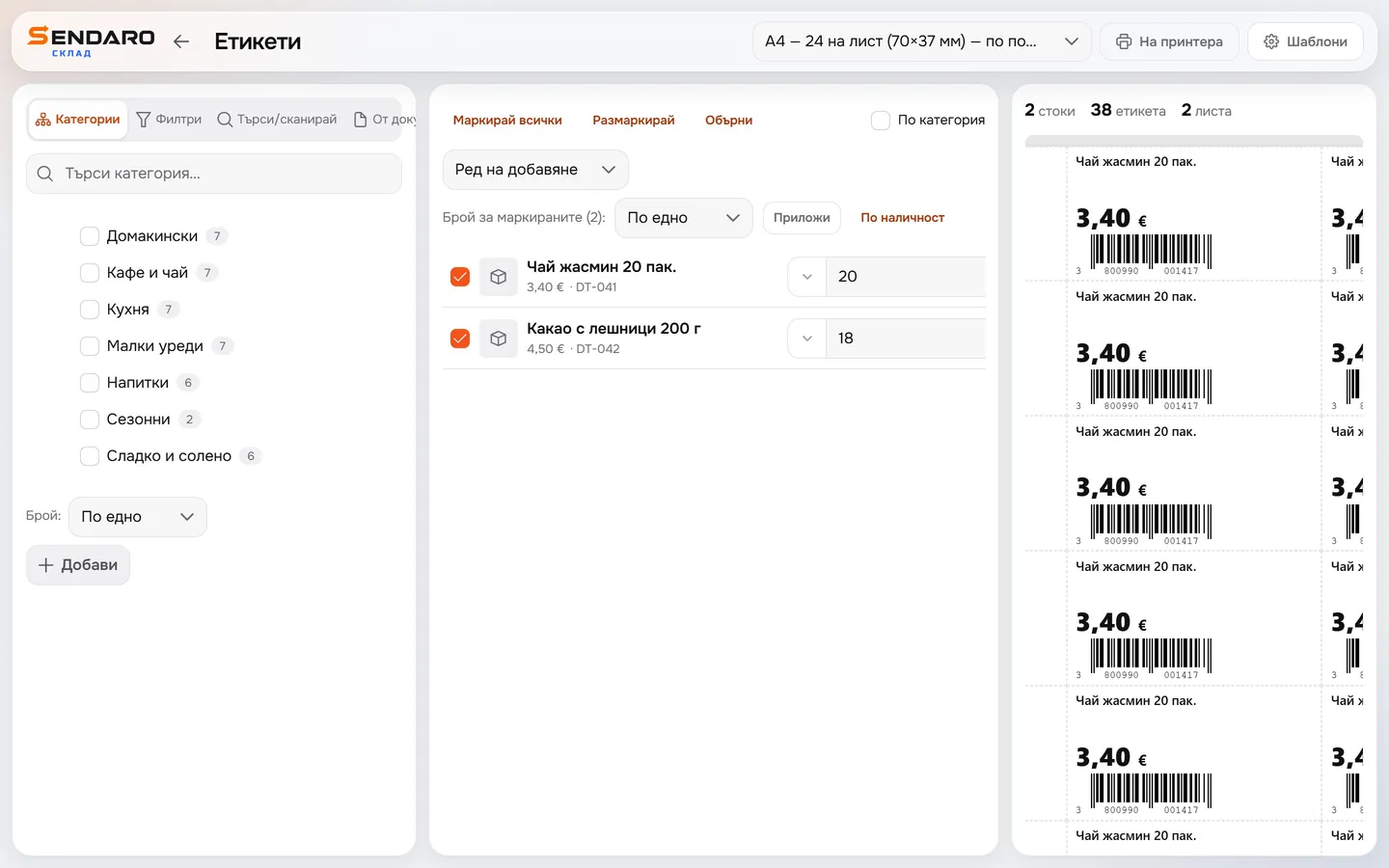
Print price and barcode labels for the new items in the delivery: here, the jasmine tea and the hazelnut cocoa – 38 labels on 2 A4 sheets.
What you get
Less typing with every delivery.
Checked against the invoice
Every line shows what the invoice says and what arrived, so a shortage stands out right away.
Tablet, phone and scanner
Receive on a tablet or phone right where the goods are, and scan the barcodes.
Labels for new items
Print labels for new items as you receive them.
With or without a document
Receive against a supplier order or an invoice. Without a document, scan whatever came in.
Up close
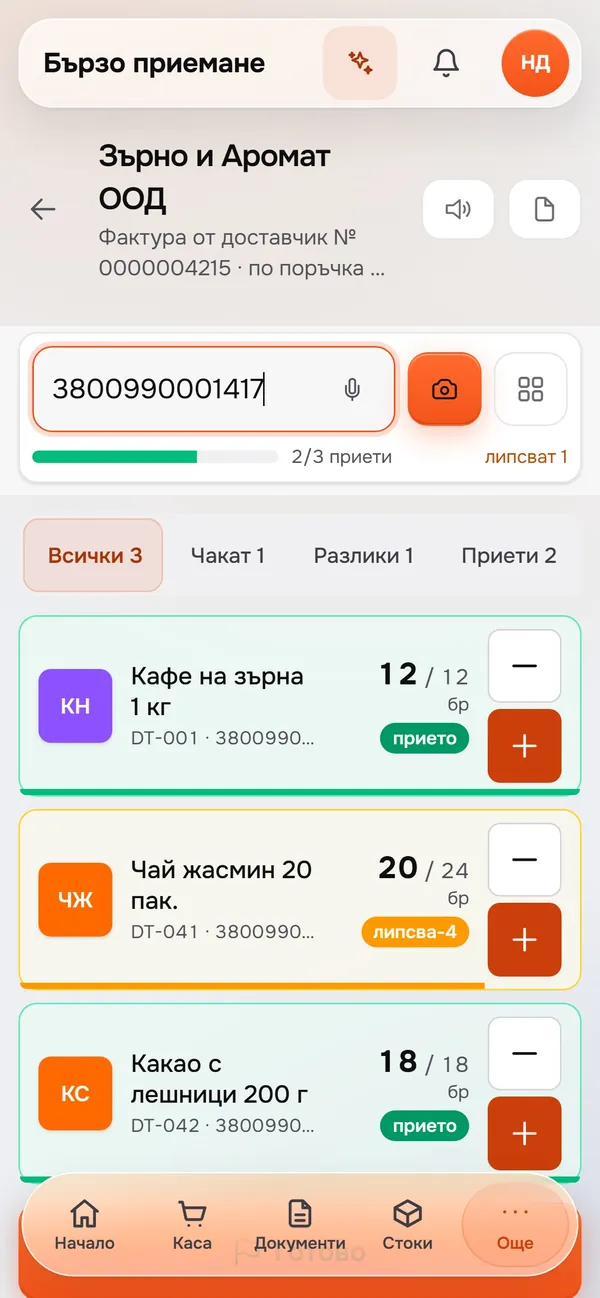
Receiving on a phone, too.
Questions
Questions about receiving stock.
How do I turn on receiving?
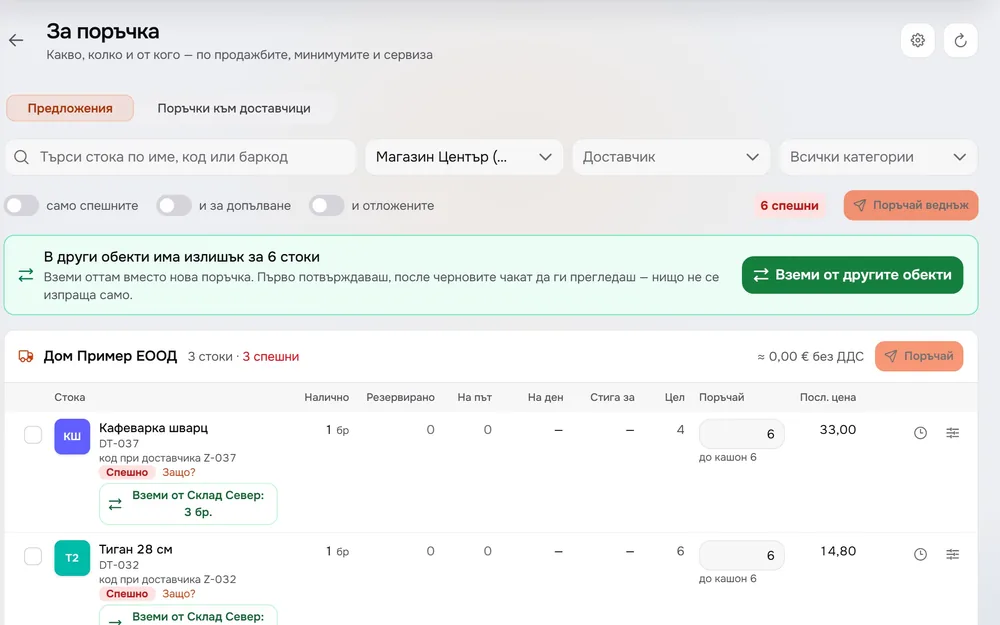
The ‘Quick stock receiving’ module is off by default. Turn it on in Settings → Modules.
What happens to shortages?
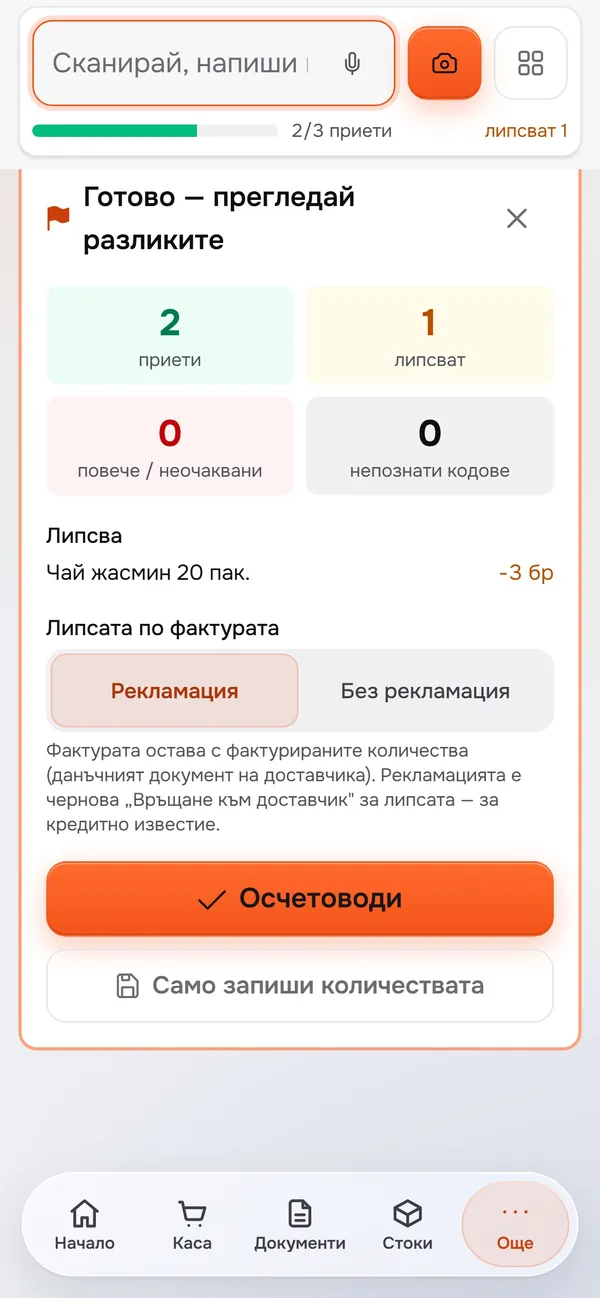
‘Done’ shows what’s missing before you post. The invoice keeps the invoiced quantities, and for the shortage you can raise a claim – a ‘Return to supplier’ draft.
Can I receive stock without an invoice?
Yes. In ‘Receiving without a document’, pick a supplier if you like and scan whatever came in. When you tap ‘Done’, everything you scanned becomes receiving lines at purchase prices.
Can I photograph the invoice instead of typing it in?
It’s new and needs setting up: a separate module in Settings → Modules and your own key for the reading service. The invoice photo is read for you, and the result is a suggestion you check.
More features